
Custom Tags
Custom Tags let you layer your own organizational taxonomy on top of ShadowMap's findings. You define tag keys (for example business_unit, priority, owner, ticket) per module, then apply values to individual records or in bulk. Tags become first-class filters, render as pills in the table and detail views, and survive across scans — giving you a way to slice the attack surface by the dimensions that matter to your organization, not just the ones the scanner ships with.
Overview
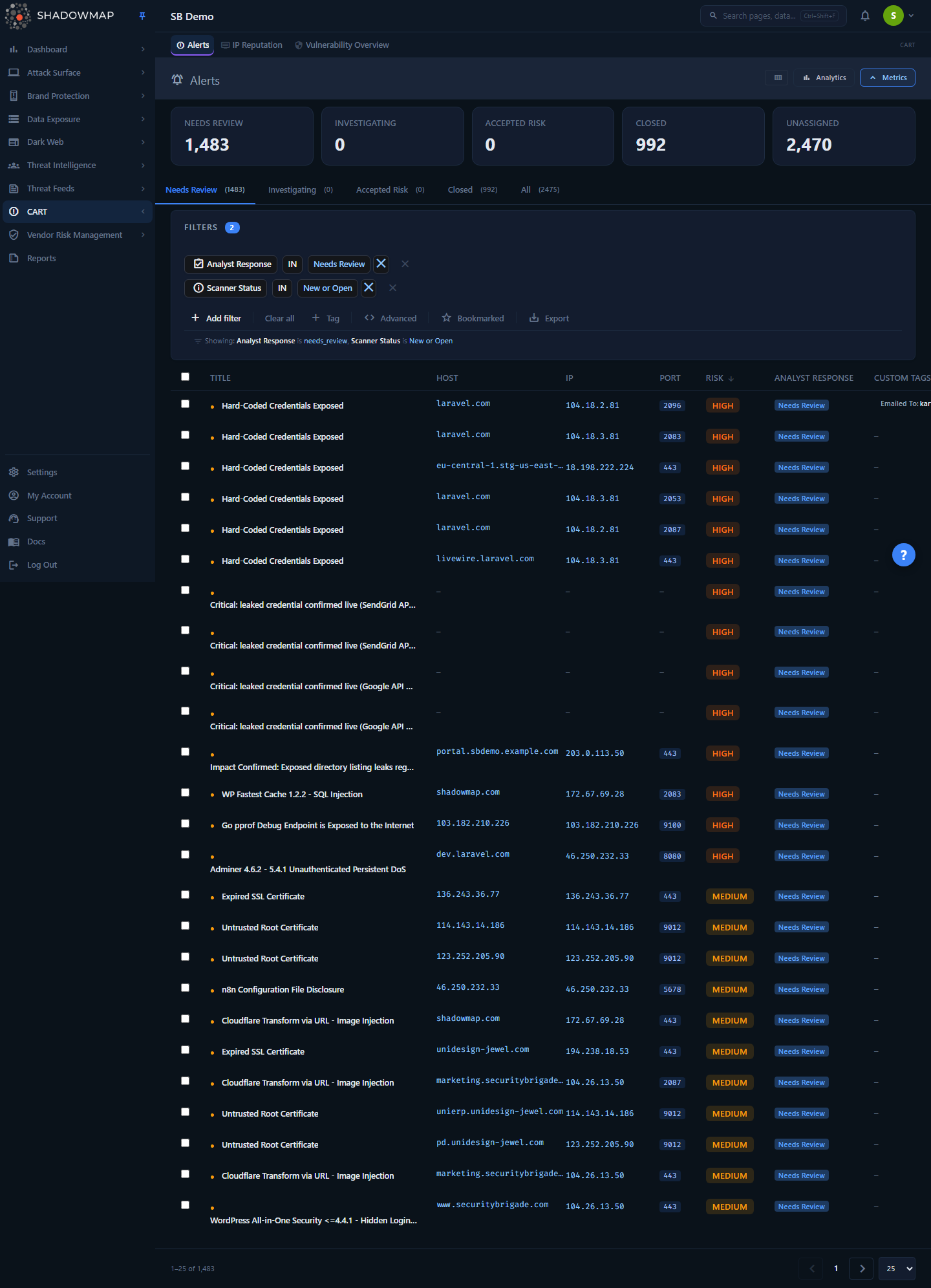
Custom Tags shown in context on the Alerts list — the "Custom Tags" column renders applied Key: value pills, and the + Tag control in the filter bar manages keys. Every list module exposes the same controls.
Custom Tags are not a standalone page; they are a capability woven into nearly every module list and detail view. You will encounter them in three places:
- The filter bar — a + Tag button (where enabled) that creates new tag keys for the current module, and tag keys that appear as filterable fields once created.
- The bulk action bar — a Tag action that appears when you select one or more rows, opening a modal where you apply values (and can create a new key inline if one doesn't exist yet).
- The row / detail view — a Custom Tags column and a tags section in the detail drawer, where each applied tag renders as a
Key: valuepill you can update or delete.
Because tags are user-defined and tenant-scoped, two different teams looking at the same module can maintain entirely different taxonomies on the same underlying findings.
How it works
This is the part you cannot infer from the UI. Custom Tags are a two-level model — keys and values — with strict scoping and normalization rules.
The two-level model: keys and values
A custom tag has two parts:
- Tag key — the dimension, e.g.
priorityorbusiness_unit. Keys are defined once per module and live in thecustom_tagstable, scoped to your company and a specific module type. Creating a key does not touch any finding; it just registers the dimension as available. - Tag value — what you assign to a specific record under a key, e.g.
priority = highorbusiness_unit = retail. Values are stored on the record itself.
A single record can carry multiple keys, and a single key can carry multiple values on the same record (for example owner: alice and owner: bob on one alert).
Scoping: per-company, per-module
Tag keys are isolated on two axes:
- Per company (tenant). Keys you create are visible only to your organization. They never leak across tenants.
- Per module. A key created on Alerts is not automatically available on Web Applications or Open Ports. Each module maintains its own key namespace, identified internally by a numeric module type. If you want the same dimension (say
business_unit) on three modules, you create it three times — once per module.
This is deliberate: the values that make sense for a phishing URL (brand, takedown_vendor) are rarely the values that make sense for an open port (firewall_zone, owner_team).
Normalization and reserved characters
Input is normalized aggressively so that tags stay consistent and filterable:
| Rule | Behavior |
|---|---|
| Keys are lowercased | Business Unit is stored as business_unit. |
| Spaces become underscores in keys | cloud team → cloud_team. On display the key is title-cased back to Cloud Team. |
| Comma-separated input | Both key creation and value assignment accept a, b, c to create/apply several at once. |
| Internal spaces collapse | high priority is normalized to high priority. |
**: and ` | ` are forbidden in values** |
Internally, the tags applied to a single record are serialized as a pipe-delimited string of colon-joined pairs — priority:high|business_unit:retail|owner:alice. You never type this format; it is what the comma-separated UI input compiles down to.
Reserved-key protection
You cannot create a tag key whose name collides with a built-in filter field on that module. When you try to add a key, ShadowMap checks it against the module's structural filter fields (e.g. is_live, name, fuzzer on Domain Squatting; platform, risk on Social Media; the alert filter keys on Alerts). If the name is already a real field, the creation is rejected — the browser blocks it inline with a "<field> Tag already exists!" toast, and the server independently rejects it with "Tag Name already exists : <name>". This prevents a user-defined tag from shadowing — and silently breaking — a real scanner filter.
Tags persist across scans
A custom tag value is attached to the finding record, not recomputed each scan. Once you tag an alert priority: critical, that label stays with the alert through subsequent scans as long as the underlying finding persists. This is what makes tags useful for long-running workflows (ownership, ticketing, triage state) rather than transient annotations.
Existing-value reuse
When applying a value, the modal can pull the distinct values already used for the selected key (via a per-module fetch_custom_tags lookup) into a dropdown. This keeps your taxonomy tight — instead of free-typing prod, production, Prod three different ways, you pick the canonical value that already exists.
Working with tag keys
Tag keys are managed from the filter bar of a module that supports them (look for a + Tag button, rendered with an add icon).
- Open the module list (for example Alerts).
- In the filter bar, click + Tag to open the Add Custom Tag Name modal.
- Enter one or more key names as comma-separated values — e.g.
priority, business_unit, owner. - Click Add Tags.
The new keys are normalized (lowercased, spaces → underscores), validated against reserved field names, and registered for that module. They immediately become available as filter fields and as selectable keys in the value-assignment modal.
You can also create a key without leaving the value-assignment modal — see Applying tag values below. The filter-bar + Tag button remains the place to register several keys at once (it accepts comma-separated names); the in-modal creator handles one key at a time.
TIP
Plan your key namespace before you start tagging at scale. Keys are the columns of your taxonomy; values are the cells. A small set of well-chosen keys (priority, owner, business_unit, ticket) filters far better than dozens of one-off keys.
Applying tag values
Values are applied to actual findings, either in bulk from the list or one record at a time.
Bulk apply from the list
- Select one or more rows using the checkboxes. The bulk action bar appears.
- Click Tag. The Add Custom Tag Values modal opens, pre-loaded with the rows you selected.
- Choose the key — under Custom Tag, pick a key from the Select Tag dropdown. Use the Search existing tags box above it to filter the list when a module has many keys.
- Or create the key inline — if the key doesn't exist yet, click Can't find the tag? Create it here, type a single name under New Tag Name, and click Create Tag. The key is created (one at a time — commas are rejected here) and selected without leaving the modal. When no key is selected, the submit button reads Create Tag & Add Values and performs both steps on submit.
- Enter values — under Tag Values, type one or more values as comma-separated input. Once a key is selected, an Existing Values dropdown (Select an Existing Tag Value) appears so you can reuse a value already in use for that key instead of re-typing it.
- Click Add Tags (labelled Create Tag & Add Values when you are creating the key inline).
The values are written to every selected record under the chosen key. The list refreshes, the selection clears, and the new tags appear in the Custom Tags column.
Single record
You can apply, update, or delete tags on an individual record from its row or detail drawer — the same Key: value pills are interactive.
Updating a value
Click an applied tag pill and choose Update. The Update Custom Tag modal lets you type a new value or pick one from the dropdown of existing values for that key. The change replaces the previous value on that record only.
Deleting a value
Click an applied tag pill and choose Delete. You are asked to confirm — "Are you sure you want to delete Tag? This action cannot be undone." — and the value is removed from that record. Deleting a value from a record does not delete the key; the key remains available for other records.
WARNING
Tag deletion is per-record and permanent — there is no undo. Removing a tag value does not affect the same key/value on other records, and it does not remove the key itself.
Filtering and reporting by tag
Once a key exists, it behaves like any other filter field for that module:
- It appears in the Search Filters field list, so you can filter the list to, say, every alert where
priority = criticalor every web app wherebusiness_unit = retail. - Filtering by a tag combines with the module's other filters (status, severity, date ranges) and with full-text search.
- Tagged subsets can be exported alongside the rest of the row data, so your taxonomy flows into reports and downstream tooling.
This is the payoff of the two-level model: because keys and values are structured (not free-text notes), they are queryable. A note tells one analyst something; a tag lets the whole team slice and report on the attack surface by it.
Where Custom Tags are available
Custom Tags are wired into most list-based modules. The exact set evolves, but they are present on (among others):
| Area | Modules with Custom Tags |
|---|---|
| Threats | Alerts, Open Ports, IP Reputation |
| Attack Surface | Web Applications, Mobile Applications |
| Asset Inventory | Domains, Subdomains |
| Brand Monitoring | Phishing URLs, Domain Squatting, Social Media |
| Data Leaks | S3 Buckets |
| Dark Web | Stealer Logs |
Each of these maintains its own independent key namespace.
Custom Tags vs. Tag Rules vs. Comments
ShadowMap has several annotation systems; they are not the same thing:
- Custom Tags (this page) — manual, structured
key:valuelabels you apply to records and filter by. You decide what gets tagged. - Tag Rules — automated tagging. You define conditions, and matching findings are tagged automatically as they appear. Tag Rules can populate the same kind of tag dimension without manual effort; Custom Tags are the manual, ad-hoc counterpart. See the tag rules settings page for configuring automation.
- Comments — free-text discussion threads on a finding for analyst notes and collaboration, not a queryable dimension.
Use Custom Tags when you need a structured, filterable axis; use Tag Rules to apply that axis automatically at scale; use Comments for narrative context.
Common questions
Do tags I create on Alerts show up on Web Applications? No. Tag keys are scoped per module. If you want the same dimension on multiple modules, create the key on each one. Values are likewise stored per record within a module.
Can other teams in my company see my tags? Tags are scoped to your company (tenant), so they are shared across users in your organization on that module — they are not private per user. They are never visible to other tenants.
Why was my new tag key rejected as "already exists"? Either a tag key with that name already exists for the module, or the name collides with a built-in filter field (like name, is_live, platform, or risk). Reserved field names are blocked so a custom tag can't shadow a real scanner filter. Pick a more specific name.
Why can't I use a colon or pipe in a tag value?: separates a key from its value and | separates pairs in the internal storage format, so both are reserved. The value modal rejects input containing them.
Can one record have two values under the same key? Yes. A key can hold multiple values on a single record (e.g. two owners), and each renders as its own pill.
Do tags survive the next scan? Yes. Tag values are stored on the finding, not recomputed, so they persist as long as the finding does.
Is there a way to tag findings automatically instead of by hand? Yes — that's what Tag Rules are for. Define conditions once and matching findings are tagged as they arrive, no manual selection required.
Can I filter and export by tag? Yes. Created keys appear as filter fields in Search Filters, combine with other filters, and the tagged data is included in exports.
Related
- Tag Rules — automate the application of tags based on conditions, instead of tagging by hand.
- Saved Searches — persist a tag-based filter (e.g.
priority = critical) as a reusable view. - Exports — tag values flow into exported data for reporting.
- Comments — free-text analyst notes on a finding, complementary to structured tags.
- Alerts — a primary module where Custom Tags drive triage workflows.
- Severity & Status — the built-in classification axes that Custom Tags layer on top of.