
Activity
Activity is the team audit trail. Every triage action your analysts take on a finding — assigning it, changing its status, applying a tag, sharing it, or commenting — is recorded as a timestamped entry attributing the change to a named user. It answers "who touched this, and when?" across the entire platform from one feed.
Overview
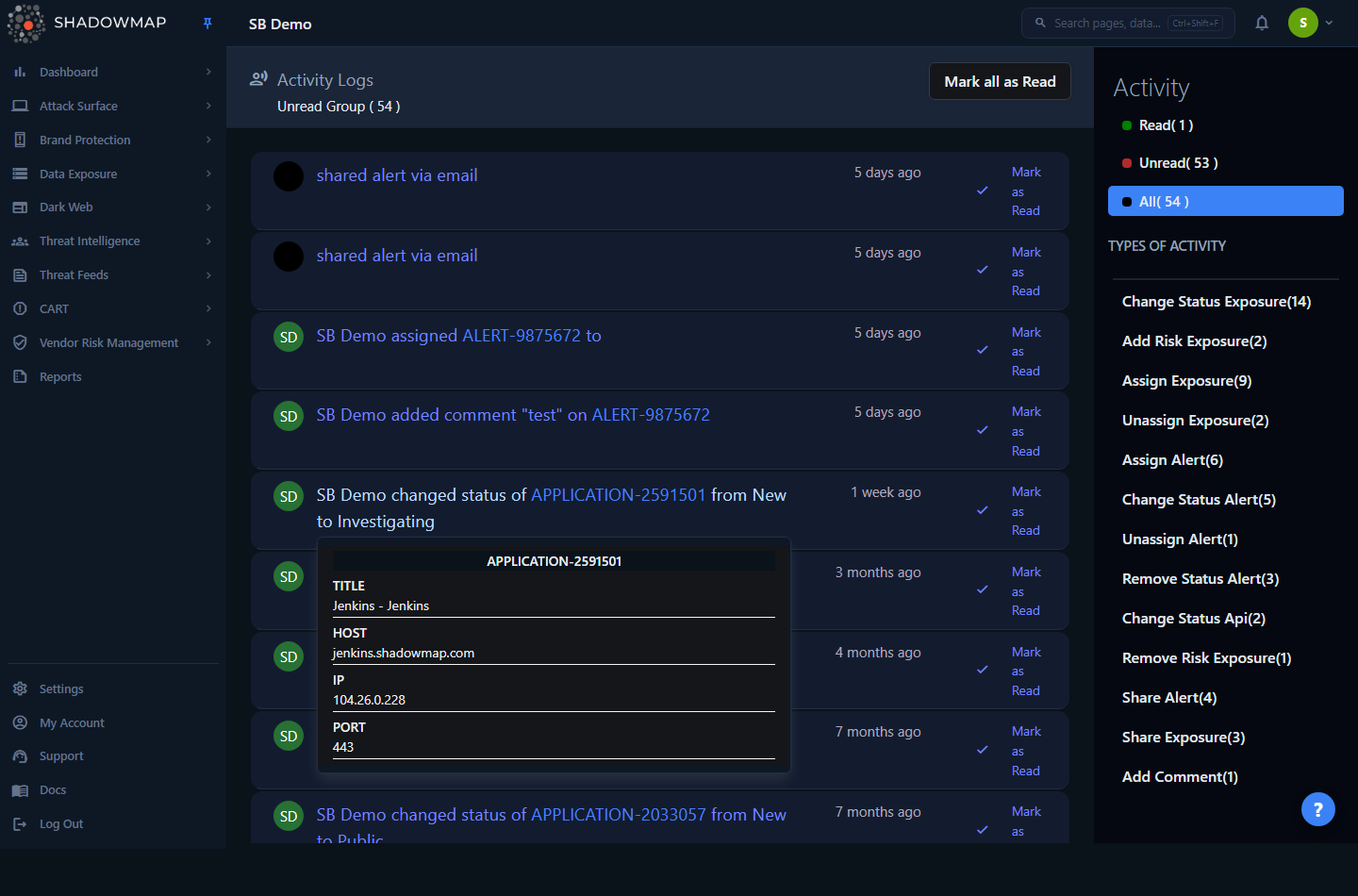
The Activity feed lives at /activity/all. The main panel is a reverse-chronological list of action records; a fixed sidebar on the right gives you read/unread counts and a breakdown of activity by type.
Each row is one action and shows:
- The acting user's initials avatar.
- A human-readable note, e.g. "Jane Doe assigned Alert #4821 to Sam Lee" or "Sam Lee changed status of Alert #4821 from Open to Resolved". The target object (alert, application, leaked file, etc.) is rendered as an inline link.
- A relative timestamp ("2 hours ago", "3 days ago").
- A per-row Mark as Read / Mark as Unread toggle.
Activity is a record of user actions, not scanner events. New findings appearing from a scan, status auto-changes from re-scans, or system jobs do not generate Activity entries — only actions a person performs in the dashboard do. For a record of scanner runs and asset discovery, see Scan Sessions / Reports.
How it works
The mechanics below are not visible in the UI but determine what you see and who sees it.
What generates an entry
An Activity record is written when a user performs one of a fixed set of tracked actions. Each action type has a server-side note template with placeholders ({user_name}, {object}, {old_status}, {new_status}, {target_user_name}, …) that are filled in at the moment the action happens and stored as the note text. The currently tracked actions are:
| Module / object | Tracked actions |
|---|---|
| Alerts | Assign, unassign, change status, remove status, share via email, share via integration, add custom tag, update tag, delete tag |
| Web Applications (exposures) | Assign, unassign, change status, remove status, add suggested risk, remove suggested risk, add tag, update tag, delete tag, add custom tag, remove tag, share |
| Leaked Files | Assign, unassign |
| Leaked APIs | Assign, unassign, change status, remove status |
| Shortened URLs | Assign, unassign, change status, remove status |
| IP Reputation | Assign, unassign |
| Comments | Add comment (on any commentable finding) |
If an object type or action is not in this list, it will never appear in the feed. Notably, viewing, exporting, bookmarking, and most settings changes are not recorded here — those belong to the dedicated Audit Logs.
Who can see which entries
Visibility is role-scoped, and this is the single most important thing to understand about the feed:
- Members see only the activities they themselves performed. The read/unread/total counts shown to a Member are also scoped to their own actions.
- Admins and managers (any role above Member) see the full activity feed for the entire organisation — every user's actions.
So if a Member reports that the feed "looks empty" while an admin sees plenty, that is expected behaviour, not a bug: the Member simply hasn't taken many tracked actions yet.
Read, unread, and "seen"
There are two independent states on each entry:
- Read / Unread — a manual flag you control. New entries start unread (shown with a highlighted background). You mark them read or unread per-row, or clear a whole page with Mark all as Read. This is the state the sidebar counts and the read/unread tabs filter on.
- Seen — an automatic flag set the moment a record is returned to your browser. Fetching a page of activity silently marks those records as seen server-side. "Seen" is internal bookkeeping and is separate from the read/unread flag you manage; it has no effect on what the sidebar counts or which tab a row appears under.
Marking something read does not delete it — it only moves it out of the Unread view. The full history remains under the All tab.
Timestamps
Entries store their creation time in UTC. The list shows a relative "… ago" label derived from that timestamp; the underlying record carries the precise UTC datetime.
Opening a target
Clicking the note text marks that entry as read and navigates you to the target object's detail page (for example, an alert opens at its alert detail view). Comment entries have no navigation target.
Understanding the feed
The sidebar
The right-hand sidebar has two sections:
| Section | What it shows |
|---|---|
| Activity | Three views — Read, Unread, and All — each with a live count. These are filters on the same feed by read state. |
| Types of Activity | One entry per activity name that currently has unread records, with a count. Clicking a type drills into the unread entries of just that kind (e.g. only "Change Status Alert" actions). |
The "Types of Activity" list is built from unread records, so it is effectively a triage queue: it shows you what kinds of teammate actions you haven't reviewed yet, grouped by action.
Reading a row
| Element | Meaning |
|---|---|
| Initials avatar | The user who performed the action. |
| Note | Templated sentence describing the action; the affected object is a clickable link. |
| Relative time | How long ago the action occurred (from the stored UTC timestamp). |
| Highlighted row background | The entry is currently unread. |
| Mark as Read / Mark as Unread | Per-row toggle for the read flag. |
The hover detail dropdown
Hovering over a note opens a small dropdown with structured detail about the target object — its key attributes (the same fields the source module exposes for that object type). For share-via-email activities, the dropdown additionally lists the To and Cc recipients the alert was sent to, so you can audit exactly who received a shared finding.
Filtering & search
The feed is filtered through the sidebar rather than a query bar:
- Read / Unread / All — switch which read state you are viewing.
- A specific activity type (from "Types of Activity") — narrow to one kind of unread action.
There is no free-text search or date-range picker on this page. Results are paginated at 50 per page; use the chevron arrows at the bottom to page back and forward. Paging through the feed marks the records on each page as seen.
Taking action
| Action | How | Effect |
|---|---|---|
| Open the affected finding | Click the note text | Marks the entry read and navigates to the object's detail page |
| Mark one entry read/unread | Click the per-row toggle | Flips that entry's read flag; it leaves the current Read/Unread view |
| Mark a page read | Mark all as Read (top right) | Marks every entry on the current page read at once |
| Review recipients of a share | Hover the share entry | Opens the To/Cc list in the dropdown |
TIP
Mark all as Read acts on the page you are viewing, not the entire backlog. It is hidden on the Read tab (there is nothing to mark). Work through Unread page by page, or use the "Types of Activity" drill-downs to clear one action type at a time.
Per-entity activity history
Beyond this global feed, the same activity engine powers the Activity / History timeline you see inside an individual finding's detail drawer (for alerts and web applications). That per-entity view answers "what has happened to this one finding?" — a focused slice of the same underlying records. The /activity feed is the org-wide roll-up of all of them.
Prerequisites
Access to this page is governed by the Activity Logs permission (settings.activity-logs):
- Read is required to view the feed.
- Write is required to mark entries read or unread.
A user with read-only Activity Logs permission can browse the feed but the mark-read/unread controls will not take effect. See Roles & Permissions and the RBAC Permissions reference.
Common questions
Why is my Activity feed empty when a colleague's isn't? You are almost certainly a Member. Members only see activities they personally performed; everything an Admin or manager sees is the whole organisation's feed. Take a tracked action (assign or change the status of any finding) and it will appear in your feed.
Does Activity log every change in ShadowMap? No. It logs a defined set of user triage actions — assignments, status changes, tags, shares, and comments on findings. It does not log scanner runs, new findings, exports, logins, or settings changes. For authentication and settings changes use Audit Logs; for scan runs use Reports.
What is the difference between "read" and "seen"? "Read" is the manual flag you control with the toggles and tabs. "Seen" is set automatically when a record is loaded into your browser and is internal bookkeeping, separate from the read/unread state you manage. Marking read never deletes anything — the entry stays under All.
Can I search or filter by date? Not on this page. Filtering is by read state and by activity type via the sidebar. The feed is reverse-chronological and paginated 50 at a time.
Why don't comments link anywhere when I click them? Comment activities intentionally have no navigation target. Other activity types deep-link to the affected finding's detail page; comments do not.
Who can mark activities read or unread? Any user with write on the Activity Logs permission. Read-only users can view the feed but cannot change read state.
Related
- Audit Logs — authentication, member, and settings-change auditing; complements Activity, which covers finding-level triage actions.
- Reports — scan session history and asset-discovery runs; the system-side counterpart to this user-action feed.
- Notifications — the separate alerting layer for unread items; distinct from this feed's read/unread state.
- Comments — the commenting feature whose "add comment" actions appear in this feed.
- Custom Tags and Severity & Status — the tag and status changes recorded as activities here.
- Roles & Permissions — explains the Member-vs-admin visibility scoping that governs what you see.