
Asset Explorer
Asset Explorer answers a single question fast: "This host showed up somewhere — what else do we know about it?" Type one domain or host and it federates a live query across seven modules plus the tech-to-CVE correlation engine, returning a per-asset technology fingerprint and every open finding that references that asset, ranked by severity, with a one-click drill-through into each finding's own module.
Overview
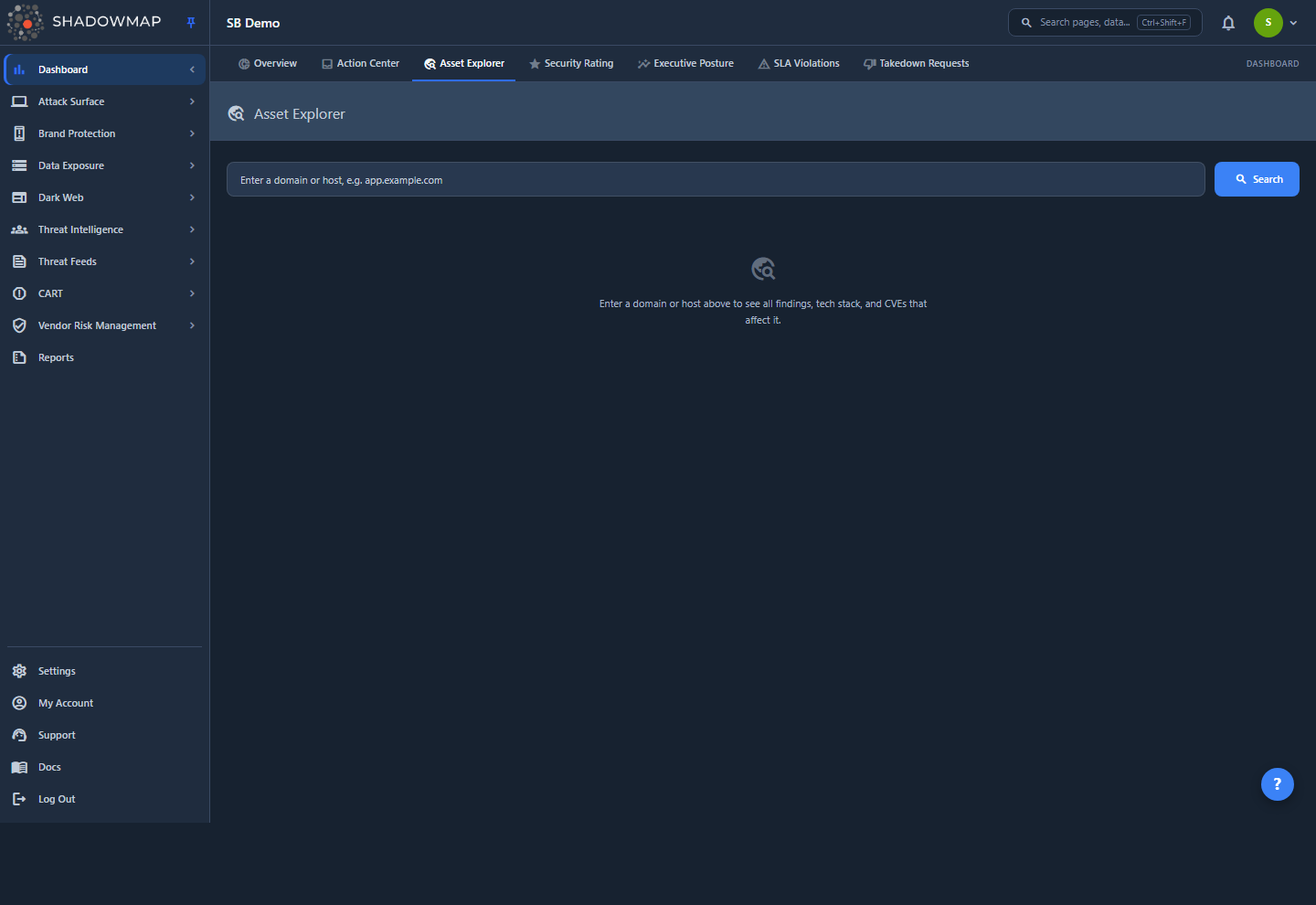
Asset Explorer is a Dashboard surface, reached at Dashboard → Asset Explorer (/dashboard/asset-explorer). It is a single search box over a two-part result:
- Tech Fingerprint — the technologies detected on the asset (framework/CMS/library detections from web-application scanning, plus network-service products from open-port scanning), followed by the known CVEs that match that stack, each with CVSS, severity, a KEV marker, and a match-confidence label.
- Finding groups — one card per contributing module (Alerts, Web Applications, Subdomains, Domain Squatting, Stealer Logs, Data Breaches, Phishing), each showing that module's findings for the asset, severity-ranked, with a View link that jumps into the module's own list or detail page filtered to that asset.
The screenshot shows the initial state before any search. Everything below describes the results experience assembled from the backend, since the demo tenant's capture is pre-search.
Where it fits
Asset Explorer is the per-asset counterpart to the Action Center. The Action Center answers "what needs me now?" across your whole estate; Asset Explorer answers "tell me everything about this one host." Both reuse the same cross-module deep-link plumbing, so a View link behaves identically on either surface.
How it works
The page makes one request when you search — a POST to /dashboard/asset-explorer/search carrying only { "asset": "<host>" }. The backend derives your company_id from the authenticated session; it is never read from the request body, so you can only ever explore assets within your own tenant. The endpoint is throttled to 60 searches per minute.
That single call assembles two independent halves and returns them together so the fingerprint and the finding groups always describe the same asset in the same response:
- Finding groups come from a federated query that runs one bounded fetch per module. Each module is queried in isolation and wrapped in its own error handler — if one module's query fails, it contributes an empty result and is logged to error tracking (tagged with your
company_idand the module name) rather than blanking the whole page. - The Tech Fingerprint comes from the shared threat-correlation engine, narrowed from your whole estate down to the single queried host.
Enter the exact host
This is the most important practical detail. Your search string is trimmed and lower-cased, and most modules match it exactly against the host as it appears in inventory. Searching app.example.com will not surface findings recorded against example.com, and vice-versa. Enter the precise host you want to investigate — the value you'd see in the Subdomains or Web Applications list. Two modules deviate from exact-match, by design:
| Module | What the asset is matched against | Match type |
|---|---|---|
| Alerts | The alert's host (falling back to its IP for the display subtitle) | Exact host |
| Web Applications | The web app's scanned host; only apps in an open status are considered | Exact host |
| Subdomains | The inventoried subdomain value | Exact host |
| Domain Squatting | The registered squat domain name | Exact host |
| Stealer Logs | The credential's registered domain or its full sub-domain | Exact host (either column) |
| Data Breaches | The breach's domain — only if the asset is one of your monitored breach domains | Exact host, tenant-gated |
| Phishing | The phishing URL — matched as a substring (…//fake-app.example.com/login matches app.example.com); resolved (false-positive / accepted / AI-filtered) URLs are excluded | Substring |
A registered domain and its subdomains are different assets
Because matching is host-exact for six of the seven modules, a bare registered domain (example.com) and each of its hosts (app.example.com, vpn.example.com) return different result sets. Data Breaches is the exception that keys on the registered domain — so breach findings appear when you search the domain, while web-app, subdomain, alert, and squat findings appear when you search the specific host. If a host returns less than you expect, try the registered domain too.
How each finding is ranked and where "View" goes
Every finding, whatever its source module, is normalised to a common shape before it reaches the page, so groups sort consistently. Severity is derived per module — Asset Explorer does not re-score anything:
| Module | Severity source | "View" destination |
|---|---|---|
| Alerts | Numeric risk band → informational / low / medium / high (alerts are capped at high, never critical) | The specific alert's detail page |
| Web Applications | The app's own risk band (critical…informational) | The specific web-application detail page |
| Subdomains | Fixed medium (subdomains carry no risk band) | The Subdomains list |
| Domain Squatting | high if the squat is live, otherwise medium | The specific squat's detail page |
| Stealer Logs | Fixed high | The Stealer Logs (Compromised Users) list |
| Data Breaches | The breach record's own severity (defaults to medium) | The Data Breaches list |
| Phishing | high if the page is online and assessed malicious, otherwise medium | The specific phishing URL's detail page |
Within each card, findings are ordered highest-severity first. The cards themselves are ordered by their highest-severity finding, then by finding count — so the module with the most severe (and, on a tie, the most numerous) findings sits at the top. Each module contributes at most 50 findings per search; a host with more than 50 findings in one module shows its most severe 50, and you drill into the module list for the full set.
Modules with a per-finding detail route (Alerts, Web Applications, Domain Squatting, Phishing) land you directly on that finding. Grouped, high-volume modules with no per-item detail (Subdomains, Stealer Logs, Data Breaches) deep-link to the module's filtered list instead. If a finding's module can't be resolved to a route, the row simply renders without a View link rather than a broken one.
The Tech Fingerprint
The fingerprint is built from two detection sources, both scoped to the queried host:
- Application technology — frameworks, CMS, and libraries detected during web-application scanning of that host.
- Network services — products detected on open ports of the host's IP address(es). The host is translated to its IP(s) via subdomain inventory (and the web-app records for the host); if no IP can be resolved, the open-port half is skipped silently.
The resulting product-and-version list drives CVE matching. Matched CVEs are filtered by version: a bare product match returns every CVE ever filed for that product, so the engine compares each detected version against the CVE's affected-version ranges and drops CVEs the installed version is confirmed not to be affected by. Each surviving CVE carries a match confidence so you can weight it:
| Confidence | Meaning |
|---|---|
| High | A detected version was confirmed to fall within the CVE's affected range. |
| Medium | The product matched and a version was detected, but the CVE carries no version range to test against (or the range couldn't be decided). |
| Low | The product matched but no version was detected for it — the CVE is a product-level match only. |
The panel shows a plain summary line (N CVEs affect this asset · X KEV · Y critical), then each CVE with its identifier, CVSS score, a severity badge, a KEV badge when it is a Known Exploited Vulnerability, and its confidence label. Counts shown are always the real payload counts — the panel never fabricates a number, and shows honest inline empty states ("no tech detected", "no known CVEs match this asset's tech") when a section is empty. The fingerprint for a given host is cached for 30 minutes.
The fingerprint only fills in for scanned hosts
Tech and CVE data exist only for hosts ShadowMap has already scanned — a host must appear in web-application inventory (for application tech) or resolve to an IP with open-port results (for network-service tech). A brand-new or out-of-inventory host returns an empty fingerprint even when finding groups are present. This is expected, not an error.
Page states
| State | When you see it |
|---|---|
| Initial | Before any search — the prompt to enter a host. |
| Loading | While the search is in flight. A newer search supersedes an older one, so a slow earlier response can never overwrite a newer result. |
| Results | Any finding groups, detected tech, or matched CVEs came back. |
| Empty | Findings and tech and CVEs are all empty for the host — "No findings for <host>". |
A network or backend error degrades silently back to the initial state (no crash, no partial page) — re-run the search to retry.
Export
With results on screen, Export builds an Excel workbook of everything for the host you searched and emails it to you. The page caps each module at 50 findings; the export does not. It runs in the background like every other ShadowMap export: a task card shows its progress, you can cancel it, and the file arrives at your registered email. The export always uses the host the results belong to, even if you have since edited the search box. It is limited to 10 requests per minute.
The workbook contains:
| Sheet | What it holds |
|---|---|
| Summary | The host, company, who requested it and when, the row count of every sheet, and any module your account cannot see |
| Alerts | Every alert on the host, all statuses: title, host, IP, port, path, risk, status, response status, first/last seen, and a link to the alert |
| Web Applications | Open web applications served from the host: title, full URL, IP, port, risk, status, response status, first/last seen |
| Subdomains | Inventory records for the exact host: IP, scope status, provider, country, first/last seen |
| Domain Squatting | Squats registered as the exact name: live, status, confidence, keyword, first seen, taken-down date |
| Compromised Users | Stolen credentials whose domain or subdomain is the host: username or email, password, URL, status, seen/added dates — the same fields the Compromised Users export carries |
| Data Breaches | Breach records for the domain (monitored domains only), the same fields the Data Breaches export carries, including the password |
| Phishing | Phishing URLs containing the host, excluding resolved ones: live, title, IP, country, keyword, status, AI verdict |
| Technologies | Every technology detected on the host and which scan found it |
| Matched CVEs | Every matched CVE (the page shows the first 50): CVSS, severity, KEV, ransomware use, vendor, product, match confidence |
Each module's sheet uses exactly the same matching rules as its card on the page (the table under Enter the exact host).
The workbook contains credentials
The Compromised Users and Data Breaches sheets carry the leaked passwords, as those modules' own exports do. Handle and share the file accordingly.
Who sees what
Asset Explorer shows each person exactly what their own module pages would show them:
- Module permissions. A module's card, and its sheet in the export, appear only if your role can read that module (for example
threat.alerts:readfor Alerts,dark-web.compromised-users:readfor Compromised Users). The Technologies panel needsasa.tech-stack:read, and the matched CVEs needthreat-intel.overview:read. A module you cannot see is named on the export's Summary sheet, so an empty export is never mistaken for a clean host. - Data restrictions. If an administrator limited your Alerts or Web Applications list to a saved search, Asset Explorer applies the same restriction: you only see the alerts and web applications your list shows you. The Subdomains and Compromised Users lists apply no data restriction, and neither does Asset Explorer. For Domain Squatting, Phishing and Data Breaches, a data restriction hides that module from Asset Explorer entirely rather than show it unfiltered.
AI coverage
Asset Explorer runs no AI of its own — it neither summarises nor AI-scores anything on this page. Severity bands, CVE matching, and match confidence are all deterministic, rule-based correlation. The only AI-derived element is the phishing exploitability signal: a phishing finding is flagged as a live malicious page (raising it to high and showing an exploit badge) when it is online and the Phishing URLs module's AI verdict marks it malicious. That verdict originates in the Phishing module's own AI review — Asset Explorer merely displays the flag it inherits.
Use it for
- Incident triage. A host lands in an alert, a SIEM ticket, or a dark-web mention. Paste it into Asset Explorer to see, in one call, what it's running, which CVEs affect it, and whether it also shows up in phishing, squatting, stealer logs, or breach data — before you decide how urgent the incident is.
- Asset due diligence (M&A / onboarding). Point it at a newly acquired or newly monitored host to get a one-screen posture read — tech stack, exploitable CVEs, and any existing exposures — without opening seven module lists by hand.
- Before-change reviews. Ahead of a decommission, migration, or exposure change, confirm what a host is currently running and what's currently open against it, so nothing outstanding gets carried across or left behind.
Common questions
I searched a host and got results, but the Tech Fingerprint is empty. Is it broken? No. Finding groups and the fingerprint come from different data. Groups appear for any module that references the host; the fingerprint needs the host to have been scanned — present in web-application inventory (application tech) or resolvable to an IP with open-port results (network-service tech). An out-of-inventory host legitimately shows findings with an empty fingerprint.
I know this domain is in a breach, but searching a subdomain shows nothing from Data Breaches. Data Breaches keys on your monitored breach domains, which are registered domains — not individual hosts. Search the registered domain (example.com) to surface breach findings; search the specific host (app.example.com) for its web-app, subdomain, alert, and squat findings.
Why does a host with lots of findings only show 50 in a module? Each module contributes at most 50 findings per search to keep the query bounded and the page responsive. You're seeing that module's most severe 50. Use Export to get every finding for the host in one workbook, or click View to open the full module list filtered to the asset.
A finding row has no "View" link. The link only renders when the finding's module maps to a known destination route. Subdomains, Stealer Logs, and Data Breaches deep-link to their module list (they have no per-item detail page); Alerts, Web Applications, Domain Squatting, and Phishing link to the specific finding. If a row shows no link at all, its module couldn't be resolved to a route — the row is still shown, without a dead link.
What does the CVE "confidence" label mean — is it an AI score? It is not AI. It reflects how precisely the CVE was matched: high = a detected version falls in the CVE's affected range; medium = product-and-version matched but there was no range to test; low = product matched with no version detected. Treat high-confidence, KEV-flagged, critical CVEs as your first priority.
Can I search a partial string or a wildcard? No. Matching is exact-host for six of the seven modules (Phishing matches the host as a URL substring). Enter the full host or full registered domain exactly as it appears in inventory — partials and wildcards won't match.
Who can use Asset Explorer? Anyone with the dashboard.overview:read permission — the same permission that gates the rest of the Dashboard. What each person then sees inside it follows their module permissions and data restrictions (see Who sees what). See Roles and Permissions.
Related
- Action Center — the cross-module "what needs me now?" queue; Asset Explorer is its per-asset counterpart and shares the same deep-link plumbing.
- Dashboard Overview — the estate-wide posture rollup; Asset Explorer is the drill-in-by-host companion to it.
- Technology Stack — the estate-wide technology inventory that the Tech Fingerprint scopes down to a single host.
- Open Ports — the open-port service detections that feed the fingerprint's network-service tech.
- KEV Compliance — context for the KEV badge shown on matched CVEs.
- Alerts — a contributing module; alert rows deep-link into the specific alert here.
- Web Applications — a contributing module and the source of application-layer tech in the fingerprint.
- Phishing URLs — the contributing module whose AI verdict drives the only AI-derived signal on this page.
- Stealer Logs and Data Breaches — dark-web contributing modules; their rows deep-link to the module list.
- Roles and Permissions — the
dashboard.overview:readpermission that gates this page.