
Code Repositories
ShadowMap continuously scans public code hosting platforms for repositories that match your organization and surfaces the ones that leak secrets, credentials, configuration files, or proprietary source. It detects when an employee, contractor, or vendor pushes something sensitive to a public repo — and triages each finding through a full review-to-takedown workflow.
Overview
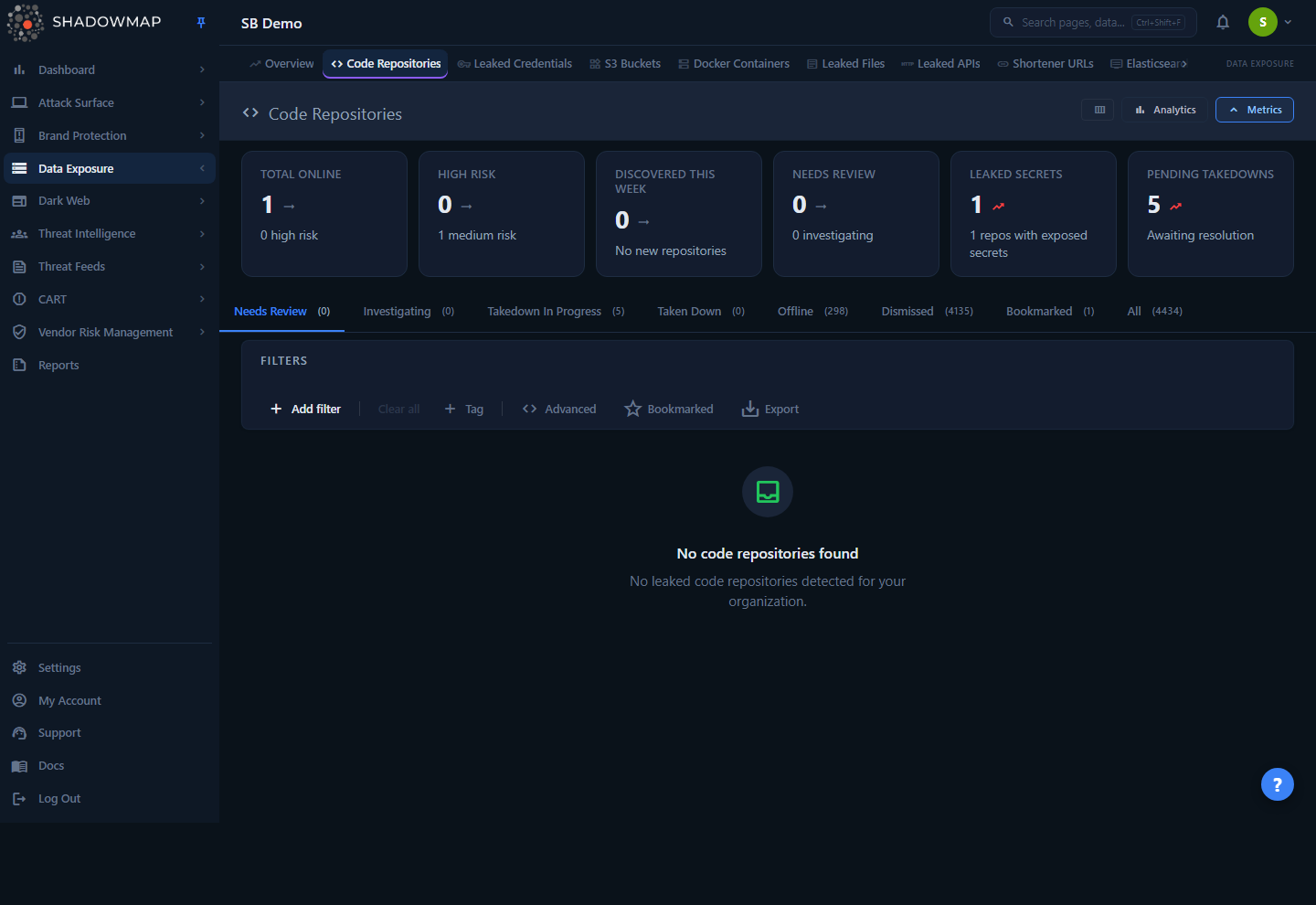
The Code Repositories list is the working queue for leaked-source findings. Each row is one public repository attributed to your organization, ranked worst-first by risk. The page lands on the Needs Review tab — repositories that are online, not yet triaged, and not dismissed — so you always start on the items that demand a decision.
Above the table you get three layers of context:
- KPI strip — six metric cards (Total Online, High Risk, Discovered This Week, Needs Review, Leaked Secrets, Pending Takedowns). Clicking a card drills into the matching tab and filter — except Leaked Secrets, which is display-only (repos-with-leaks has no single filterable list, so the card does not drill in).
- Analytics panel — four charts: Risk Distribution (donut), Source Distribution (bar), New Repos Trend (line), and Top Keywords (bar). Chart segments are clickable and apply the corresponding filter.
- Status tabs — workflow scopes with live counts.
Both the KPI strip and the analytics panel can be collapsed from the page header to give the table more room.
How it works
The mechanics below are not visible in the UI but determine what you see and how it is ranked.
How repositories are discovered
ShadowMap's collector (internally "gojo") searches public code platforms — GitHub, GitHub Gists, GitLab, and GitLab Snippets — using keywords derived from your organization: brand names, domains, internal project names, and other identifiers. Every repository whose code, metadata, or commit history matches a keyword becomes a candidate. The matched terms are stored per file and per repository, so you can always see why a repository was flagged (the Keyword column and the Matched Keywords section in the detail view).
Because keyword matching is broad by design, the queue contains a large amount of noise — unrelated repositories that merely mention a common term. The risk score (below) is what separates genuine exposure from noise.
How the risk score works
Each repository carries a numeric risk score written by the scanner. ShadowMap bands that integer into the four labels shown in the UI:
| Band | Score range | What it means |
|---|---|---|
| High | 500 and above | Customer-owned or customer-sourced exposure — code that originates from or belongs to your organization. The most likely to be a real, actionable leak. |
| Medium | 100–499 | Third-party secrets — a secret or credential was detected, but the repository is not clearly owned by your organization. |
| Low | 1–99 | A real but soft signal — some weak indicator was present, short of a confirmed secret or ownership. |
| Informational | 0 | No meaningful signal. A keyword matched, but nothing else did. |
Why "Informational" exists
Roughly 99% of keyword-matched repositories score exactly 0 — they mention one of your terms but contain no secret and have no ownership link. Banding score 0 as Informational (rather than lumping it into Low) lets you cleanly separate genuine low-severity findings from pure noise. The risk band, not the raw integer, is the single source of truth — it drives the row badge, the analytics donut, facet counts, and SLA violations, so they can never disagree.
When you filter by risk band, ShadowMap translates the band back into a numeric range on the score column (e.g. "High" becomes score >= 500). Sorting by Risk orders by the raw score, so within the High band the highest-scoring repos come first.
Files vs. Leaks (two different counts)
Each repository row shows two numbers, and they measure different things:
- Files — the count of code files in the repository that ShadowMap analyzed and stored (the files where your keywords appeared).
- Leaks — the count of online, non-suppressed leaked credentials attributed to the repository. This number mirrors the Leaked Credentials module exactly (the same secrets, with suppressed, false-positive, and AI-filtered noise excluded) — so it is not a raw detection tally. When the count is above zero, clicking it opens those exact credentials in Leaked Credentials, scoped to this repository.
A row with Leaks > 0 is highlighted in red. That is your strongest signal of a live, exploitable secret.
What the tabs actually filter
Tab counts come from the backend, not from the loaded page. Each tab is a precise query scope:
| Tab | Scope |
|---|---|
| Needs Review | Online, not dismissed, not pinned, no analyst status set, and no takedown requested. The default unreviewed queue. |
| Investigating | Marked Investigating by an analyst, not dismissed, not pinned, and with no takedown request open. |
| Takedown In Progress | Online, with an open takedown request (submitted but not yet completed or denied). |
| Taken Down | Status is taken down and a takedown request was completed — repos your team actively removed. |
| Offline | Repo went offline (made private or deleted) without a completed takedown — it disappeared on its own. |
| Dismissed | Marked as a false positive ("bad repository") by an analyst, still online. |
| All | Every repository, all workflow states. |
| Filtered By AI | Repositories the AI review engine judged to be false positives and set aside. Distinct from Dismissed, which is a manual analyst decision — this scope holds machine-filtered noise. Shown for every tenant, even where the AI columns are not enabled. |
Pinning is company-wide
A Code Repositories pin is a company-wide flag stored on the repository itself (not a per-user bookmark), so a pin set by one analyst is visible to the whole team. You pin or unpin from the actions menu on the full-page repository view — the list no longer has a bookmark star, a Bookmarked tab, or a Bookmarked filter. Pinning still removes a repository from the Needs Review and Investigating queues (both exclude pinned repos), so an otherwise-untriaged pinned repo surfaces only under the All tab.
Online vs. offline
Status is the live reachability of the repository: Online means it is currently public and accessible; Offline means it was made private or deleted since ShadowMap detected it. Offline is shown as a neutral (not red) state — a repo going offline is usually a good outcome, not an active threat. Note the distinction from Analyst Status, which reflects your team's triage decision (Investigating, Dismissed, etc.) independent of reachability.
AI assessment (advisory)
Where AI review is enabled for your tenant, ShadowMap layers an advisory machine assessment onto each repository. It never changes a finding's risk band or moves it between workflow tabs on its own — it is guidance that sits alongside your triage:
- AI Verdict — the model's call on the finding, shown as a badge: Real Exposure, Needs Review, Likely FP, or Benign. (The AI Assessment filter labels the same four verdicts more formally as Confirmed Exposure, Needs AI Review, Likely False Positive, and Benign.)
- AI Score — a 0–1000 score for how strongly the assessment leans toward a genuine exposure. The Needs Review tab sorts by this score, highest first (see below).
- AI Tags — controlled-vocabulary chips describing what was found and how sensitive it is (content and sensitivity facets).
The full assessment — verdict, score, a confidence percentage, tags, and analysis notes — appears in the detail drawer and on the full-page overview. The model is always identified generically as ShadowMap AI; the underlying vendor model is never disclosed. When a repository is machine-judged a false positive, the engine moves it to the Filtered By AI tab rather than deleting it, so you can audit those calls.
AI columns are gated per tenant
The AI Verdict, AI Score, and AI Tags columns and the matching filter fields appear only when AI review is enabled for your tenant and the loaded rows carry AI data; otherwise they collapse out of the table entirely. The Filtered By AI tab, however, is always visible.
Understanding the data
Columns
The table has a column customizer (in the page header); the Repository column is always visible. Available columns:
| Column | Description |
|---|---|
| Repository | owner / name. The owner namespace is dimmed; the repo name is emphasized. Hover to see the commit author's name and email. Click to open the detail drawer. |
| Keyword | The organization keyword(s) that caused the match, comma-separated. |
| Source | The platform: GitHub, GitHub Gist, GitLab, or GitLab Snippet. |
| Risk | The risk band badge: High, Medium, Low, or Informational. |
| Status | Live reachability: Online or Offline. |
| Analyst Status | Your triage state: Investigating, Reviewed, Accepted Risk, Dismissed, Resolved, or none. |
| AI Verdict | The AI's advisory call: Real Exposure, Needs Review, Likely FP, or Benign. Only shown where AI review is enabled. |
| AI Score | The 0–1000 AI assessment score. Sortable. Only shown where AI review is enabled. |
| AI Tags | Controlled-vocabulary AI tags (content and sensitivity). Only shown where AI review is enabled. |
| Files | Number of analyzed code files in the repo. |
| Leaks | Count of online, non-suppressed leaked credentials (mirrors Leaked Credentials). Red when > 0; click to open them there. |
| Takedown | Current takedown request status, if one exists. |
| First Seen | When ShadowMap first detected the repository (relative time). |
| Last Seen | When the repository was most recently confirmed (relative time). |
The default view shows Repository, Keyword, Source, Risk, Status, Files, Leaks, First Seen, and Last Seen — plus AI Verdict, AI Score, and AI Tags for tenants with AI review enabled. Sorting defaults to Risk descending (worst-first) on every tab except the landing Needs Review tab, which defaults to AI Score descending to float the likeliest real exposures to the top. Clicking any sortable column header, or opening a shared link that carries an explicit sort, overrides these defaults.
What gets detected
The scanner flags a wide range of sensitive content:
- API keys and secrets — hard-coded AWS/GCP/Azure credentials, Stripe, Twilio, SendGrid and similar tokens.
- Private keys and certificates — RSA/EC private keys, PEM files, PKCS12 keystores.
- Configuration files — exposed
.env,database.yml,wp-config.php, Docker Compose files with embedded credentials. - Internal URLs — references to staging environments, admin panels, internal APIs, VPN endpoints.
- Credentials in commit history — secrets that were committed and later removed but remain in git history.
- Proprietary source code — code that belongs in private repositories but was pushed publicly.
Filtering & search
The filter panel supports building rules across these fields:
| Filter | Notes |
|---|---|
| Source | GitHub, GitHub Gist, GitLab, or GitLab Snippet. |
| Risk | By band (High / Medium / Low / Informational), translated to a numeric range internally. |
| Name | Repository name. |
| Keyword | The organization keyword that triggered the match. |
| Owner Name | The repository owner / namespace. |
| Author Name | The commit author. |
| Author Email / Author Email Domain | Pinpoint findings from a specific person or — via the domain — from inside your own org vs. an external party. |
| File Name / Extension | Match on a specific exposed file or file type. |
| AI Assessment | The AI verdict (Confirmed Exposure, Needs AI Review, Likely False Positive, Benign). Only available where AI review is enabled. |
| AI Tags | The controlled-vocabulary AI tags. Only available where AI review is enabled. |
| First Seen / Last Seen | Date filters. |
| Custom tags | Tenant-defined tag keys appear as filter fields. Values match exactly, so selecting prod does not also match production. |
An Export control sits next to the filter panel — see Taking action.
Built-in and custom-tag filter rules combine using the selected AND/OR condition, and the export carries the same condition so an exported file matches what you see on screen. Multiple rules can target the same custom-tag key.
Custom tags
Custom tags let your team add its own key/value context to repositories, such as environment:prod or owner:appsec. Create tag keys from the filter panel, then add one or more values from the row, detail, or bulk-tag actions. Tag pills can be edited or removed in place, and all analysts in the same company see the same values.
Custom tags remain attached when a repository goes offline or is taken down. Each tag key becomes a filter field with exact value matching, and filtered exports use the same tag predicate as the list. The filter builder offers equality and set-membership operators for custom tags, not substring matching. Export sheets include a Custom Tags column that preserves each key with its values. Adding, editing, or deleting a repository tag also creates an audit entry shown in the repository Overview tab's Recent Activity card.
Author email domain is a fast triage signal
Filtering by Author Email Domain quickly separates leaks committed by your own staff (your corporate domain) from those committed by contractors or unrelated third parties — which usually changes how you respond and who you escalate to.
Detail view
Clicking a row opens a detail drawer from the right. Use the chevron buttons (or j / k) to move between repositories without leaving the list, and the expand icon to open the full-page view.
The drawer shows:
- Badges — Risk, Status (Online/Offline), Source, Analyst Status, and — where AI review is enabled and the repo has been assessed — an AI Verdict badge.
- External link — the live URL of the repository on its source platform.
- Quick Actions — Investigate, False Positive, Needs Review (when not already in that state), and Takedown (if you have permission).
- Repository Details — author name, email, and email domain.
- Exposure Summary — Files and Leaks counts as cards that link straight to those tabs on the full-page view.
- AI Analysis (where enabled and assessed) — the verdict, the score (shown as score / 1000), a confidence percentage, the AI tags, any analysis notes, and a footer noting when it was reviewed and by ShadowMap AI.
- Matched Keywords, Timeline (First Seen / Last Seen), and Comments.
Full-page view (Overview, Files, and Leaks tabs)
The expanded repository page opens on an Overview tab that mirrors the drawer detail (including the AI Assessment card where AI review is enabled). Its header carries the full action set — comments, Request Takedown, Share, and an actions (⋮) menu with Pin / Unpin Repository, Mark as / Remove from False Positive, and Mark as Investigating. Two further tabs go deep:
Files lists every analyzed file with a direct link to it on the source platform, the file size, and a code excerpt with your matched keywords highlighted in-line. A left sidebar breaks the files down by status and by file extension; a right sidebar shows the repository description, author (with a one-click LinkedIn lookup), and the full keyword set.
Leaks lists each individual secret detection, with:
- The status of the leak and the detection rule that fired (e.g. AWS Key, Private Key, API Token).
- The file path and line number where it was found.
- The offender — the actual leaked snippet — shown in a red-bordered code block.
- The surrounding line context and, critically, the commit hash and message, so you can see when the secret was introduced.
- A View leaked credential link that jumps to the same secret in the Leaked Credentials workflow for status tracking and probing.
A left sidebar summarizes leaks by status and by detection rule.
Taking action
Actions are available per-row, in the detail drawer, and as bulk operations. Selecting rows (checkboxes or keyboard) reveals a bulk action bar.
| Action | What it does |
|---|---|
| Mark as Investigating | Flags the repo as under active internal review. Moves it from Needs Review to the Investigating tab. |
| Mark as False Positive | Dismisses the repo to the Dismissed tab — removes it from the active review queue. |
| Mark as Needs Review | Reverts an investigating or dismissed repo back to the unreviewed queue (bidirectional triage). |
| Comment | Add internal notes via free text or pre-configured comment templates. |
| Add Tags | Add one or more tenant-defined key/value tags to the selected repositories. Existing tag pills can be edited or removed from repository details. |
| Request Takedown | Submit a takedown through ShadowMap's takedown service (requires permission). Moves the repo to Takedown In Progress. |
| Share | Push the finding to a connected integration (e.g. ServiceNow, Jira, Slack, email). |
| Export | Download the current filtered view (respecting tab and filter condition) as a file, generated asynchronously. |
Keyboard triage
The list supports keyboard shortcuts: arrow keys to move focus, Enter to open the drawer, plus single-key actions to mark Investigating, dismiss, and request a takedown. See Keyboard Shortcuts.
Recommended response
A leaked secret should be treated as compromised the moment it is found:
- Revoke immediately. Rotate API keys, change passwords, and regenerate certificates — even if the finding looks old.
- Audit git history. Removing a file from the current branch does not remove it from history. Use
git filter-repoor BFG Repo-Cleaner to purge it. - Contact the author. For employee-owned repos, work with them to make the repo private or remove the content. For contractor/third-party repos, escalate via vendor management — or request a takedown.
- Review access scope. Determine what the exposed credentials could reach, and audit those systems for unauthorized activity.
- Prevent recurrence. Add pre-commit secret scanning (git-secrets, detect-secrets) and CI/CD checks.
Common questions
Why is the queue so large, and why are most items "Informational"? Keyword matching is intentionally broad to avoid missing real leaks, so it pulls in many unrelated repos that merely mention a common term. Those score 0 and are banded Informational. Sort by Risk or filter to High/Medium to focus on genuine exposure; dismiss noise as False Positive. Where AI review is enabled, the Needs Review tab's default AI Score sort already floats the likeliest real exposures to the top.
What's the difference between the Files count and the Leaks count? Files is how many code files ShadowMap analyzed in the repo. Leaks is how many online, non-suppressed leaked credentials are attributed to it — the same set the Leaked Credentials module shows, with suppressed, false-positive, and AI-filtered noise stripped out. Leaks > 0 (highlighted red) is the stronger signal, and clicking it opens those credentials in Leaked Credentials.
A repository shows as Offline. Is the risk gone? Offline means the repo is no longer publicly reachable — usually because it was made private or deleted. The active exposure is removed, but if a credential was leaked while it was online, treat that credential as compromised and rotate it regardless.
What's the difference between the "Taken Down" and "Offline" tabs? "Taken Down" repos are ones your team actively removed through ShadowMap's takedown workflow (a completed takedown request exists). "Offline" repos went away on their own, without a completed takedown.
Why does a repository I pinned show up for other team members? Pins are company-wide flags stored on the repository, not per-user bookmarks, so pinning is a shared, team-level signal. You pin or unpin from the actions (⋮) menu on the full-page repository view.
How do I tell whether a leak came from our own staff or a third party? Filter by Author Email Domain. Commits from your corporate domain point to internal staff; other domains point to contractors or unrelated parties — which changes your response path.
Related
- Leaked Credentials — each detected secret links here for credential-level status tracking and validation.
- Leaked Files — standalone sensitive files found outside of code repositories.
- Leaked APIs — exposed API endpoints and keys.
- Data Leaks Overview — the rollup across all data-exposure modules.
- Takedowns — how takedown requests are submitted and tracked across modules.
- Severity & Status — how severity bands and statuses work platform-wide.