
Vendor Requests
Vendor Requests is the intake queue for your Vendor Risk Management (VRM) program. Use it to ask ShadowMap to start monitoring a third party that isn't already tracked, and to follow each request through its lifecycle — from submission, through onboarding, to an active (or rejected) vendor.
Overview
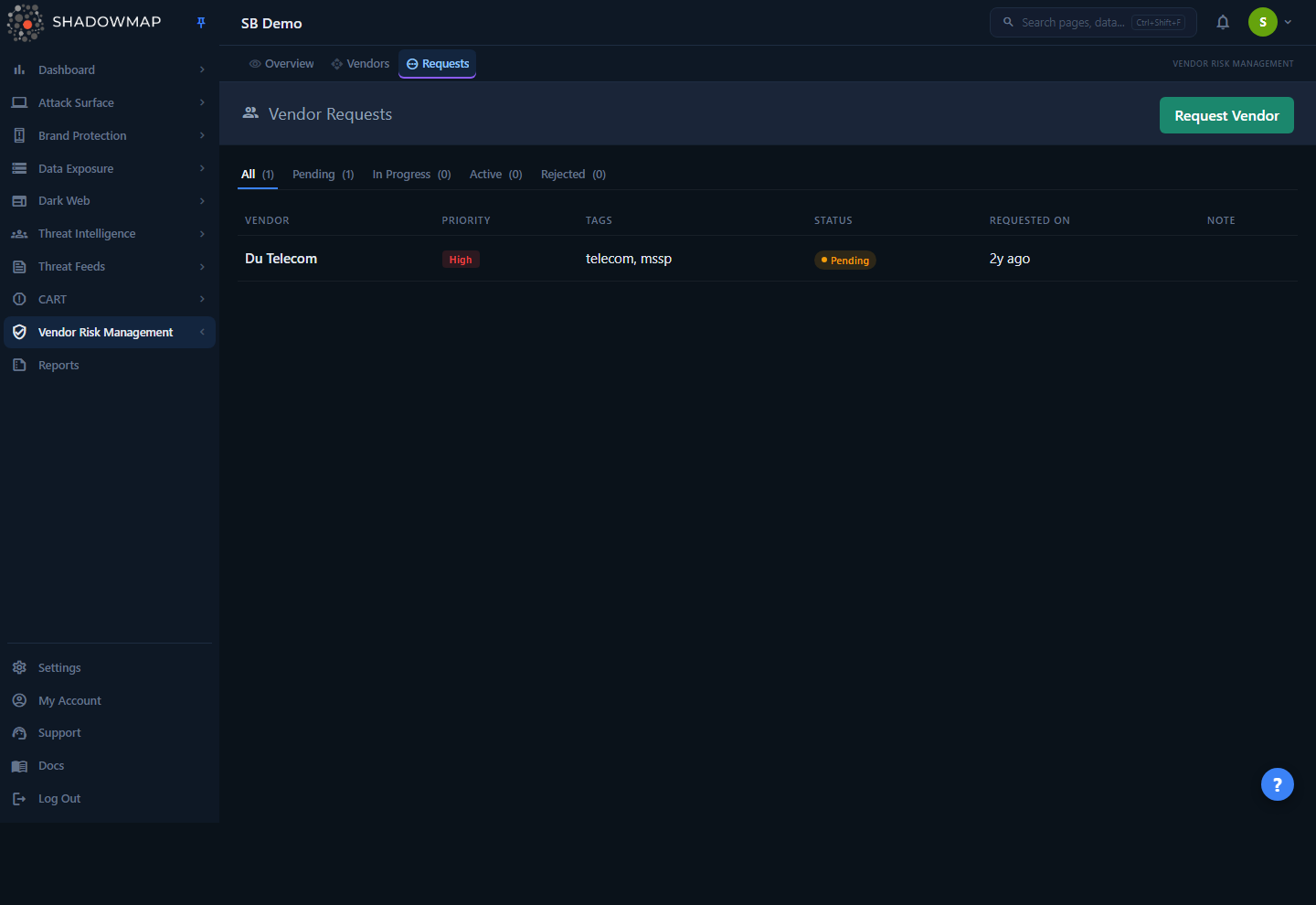
The page is a single status-segmented table of every vendor your organization has asked to add. Across the top, status tabs (All, Pending, In Progress, Active, Rejected) carry live counts so you can see at a glance how many requests are waiting versus already onboarded. The Request Vendor button in the page header opens the intake modal.
Each row is one request and shows the vendor name, the priority you assigned, any tags, the current status, when it was requested, and the most recent status note. There is no per-row detail drawer — everything about a request lives on this single row.
This page answers two operational questions: what new vendors are we waiting on? and where is each request in the pipeline? The actual risk data for vendors that have been onboarded lives in the Vendor Directory; this page is strictly the request/onboarding workflow that feeds it.
How it works
The mechanics below are not visible in the UI but determine how requests behave.
Two ways to add a vendor, one button. The Request Vendor modal contains two distinct paths:
- Search existing vendors — Type at least two characters to search vendors ShadowMap already tracks (across all customers). If a match exists, you can attach it to your program directly with a priority and tags. This does not create a request row — it immediately maps the vendor into your tracking list, and it will appear in the Vendor Directory with risk data already populated.
- Request a new vendor — If no match exists ("Can't find your vendor?"), you submit a name, priority, and optional tags. This does create a row on this page in Pending status, because ShadowMap has to onboard and begin scanning a vendor it has never seen before.
In short: searching for and adding an existing vendor skips the queue; requesting a brand-new vendor enters it.
Duplicate protection. Before creating a new-vendor request, ShadowMap checks your organization's existing requests for the same vendor name. If a match is found, submitting returns an "Already Registerd" error instead of creating a second row. Matching is name-based, so a slightly different spelling won't collide — keep naming consistent.
Server-side notification. When you submit a new-vendor request, the record is stored against your company and queued for the ShadowMap team. Each request carries an internal fulfilled flag that marks when the request has been picked up — set either when the onboarding notification is dispatched to the ShadowMap team, or when ShadowMap approves the request and onboards the vendor (see the approval note below). The flag is back-office plumbing and is not shown in the table, but it is why a request can sit in Pending before any status note appears, and it is what stops the same request from being notified or onboarded twice.
Status is a manual, audited lifecycle — not automatic. A request does not change status on its own. Statuses are set by an administrator — your org's admins move a request through the interim stages, and ShadowMap sets the final approval (see below). Every status change records who changed it, when, and an optional note (max 500 characters). The note shown in the table is always the latest one. Valid statuses are constrained server-side to exactly: pending, in_progress, active, rejected — anything else is rejected.
Approving a request is ShadowMap's step, and it onboards the vendor automatically. Moving a request to Active — the approval that graduates it into the Vendor Directory — is restricted to ShadowMap staff. Your own admins can move a request between Pending, In Progress, and Rejected and add notes, but if a customer admin tries to set Active, the server refuses with "Only ShadowMap can approve vendor requests." When ShadowMap does approve, the vendor is created in the shared vendor registry and mapped to your tenant in a single step, so it appears in the Vendor Directory with risk data immediately — there is no separate manual onboarding. The action is idempotent: re-approving an already-onboarded request is a safe no-op.
Priority is your input, not a computed score. The priority you set on a request (High / Medium / Low) is a self-assessed business-criticality label that carries through onboarding. It is distinct from the algorithmic security rating ShadowMap assigns to a vendor once it is being scanned (see the Vendor Directory).
Requests are scoped to your organization
Every request is stored against your company ID. You only ever see your own organization's requests, and status updates can only touch your own requests — even though the underlying vendor catalog is shared across all ShadowMap customers.
Understanding the data
Columns
| Column | What it shows |
|---|---|
| Vendor | The vendor name as submitted on the request. |
| Priority | Your self-assigned business priority: High (red), Medium (amber), or Low (green). |
| Tags | Free-text, comma-separated labels you attached at request time. Shows — when empty. |
| Status | Current lifecycle stage — see the status table below. |
| Requested On | Relative time since the request was created (e.g. "3 days ago"). |
| Note | The most recent status note left by whoever last changed the status. Blank until a note is added. |
| Actions | Update Status button. Visible only to admins (see Taking action). |
Statuses
| Status | Badge | Meaning |
|---|---|---|
| Pending | Amber | Request submitted, not yet picked up. New-vendor requests start here. |
| In Progress | Blue | Onboarding has begun — ShadowMap is setting up monitoring for the vendor. |
| Active | Green | The vendor is onboarded and being monitored. It now appears in the Vendor Directory with risk data. |
| Rejected | Red | The request was declined (for example, the vendor could not be identified or falls outside scope). |
The status tabs at the top of the page filter the table to a single status, and each tab's count is computed across all of your requests — so the counts stay accurate even while you're viewing a filtered tab.
Filtering & search
Filtering on this page is deliberately simple: click a status tab to scope the table to that status. The All tab shows every request. There is no free-text search or column filtering on the request list itself — the queue is meant to stay short.
The search box you'll encounter is inside the Request Vendor modal, and it searches the global vendor catalog (vendors ShadowMap already tracks), not your request history. It requires a minimum of two characters and debounces while you type.
Taking action
Submitting a request
- Click Request Vendor in the page header.
- In the modal, search for the vendor by name first. If ShadowMap already tracks it, expand the result, pick a Priority and optional Tags, and confirm — the vendor is added to your program immediately, no queue.
- If there's no match, choose Request New Vendor, then enter:
- Vendor Name (required)
- Priority — High, Medium, or Low (required)
- Tags — optional, comma-separated
- Click Submit Request. The new request appears in the Pending tab.
Search before you request
Always search first. Adding an already-tracked vendor gives you risk data immediately, whereas a new-vendor request has to go through onboarding before any scanning begins.
Updating a request's status
The Update Status action and its button only appear for users with an admin role (and the underlying endpoint requires VRM write permission). For those users:
- Click Update Status on the request's row.
- In the modal, pick the new Status (Pending / In Progress / Active / Rejected).
- Optionally add a Note (up to 500 characters) explaining the change — useful for an audit trail or to tell the requester why something was rejected.
- Click Update Status to save.
The note you enter becomes the request's visible Note, and the change is stamped with your user and the current time.
Status changes are not reversible to "no status"
Every request always has one of the four statuses. You can move a request between statuses freely (including back to Pending), but there is no "clear status." Use a status note to record context for any change.
Permissions
| Action | Requirement |
|---|---|
| View the Requests page and list | Vendor Risk Management read access |
| Submit a request / add an existing vendor | Vendor Risk Management write access |
| Update a request's status | Admin role and Vendor Risk Management write access |
Roles and module permissions are managed centrally — see Roles & Permissions and RBAC Permissions.
Common questions
I requested a vendor — why isn't it in the Vendor Directory yet? A new-vendor request starts in Pending and only flows into the Vendor Directory with risk data once it has been onboarded and marked Active. Adding an existing (already-tracked) vendor through the search path appears in the directory right away.
What's the difference between "Add" and "Request" in the modal? "Add" attaches a vendor ShadowMap already monitors to your program — instant, no queue. "Request" asks ShadowMap to start monitoring a vendor it has never scanned — this creates a Pending request that must be onboarded first.
I got an "Already Registerd" error. You've already submitted a request for that vendor name. Check the existing request's status rather than creating a duplicate.
Can I delete or edit a request after submitting? There is no edit or delete on a request from this page. Status (and the accompanying note) is the only thing that changes after submission, and only an admin can change it. To stop tracking a vendor that was onboarded, remove it from the Vendor Directory instead.
Why can't I see the Update Status button? That action is admin-only and also requires VRM write permission. With read-only access you can submit and track requests but not change their status.
Does the priority I set affect the vendor's security score? No. Priority is your own business-criticality label. The vendor's security rating is computed independently by ShadowMap once the vendor is being scanned.
Related
- Vendor Directory — where onboarded vendors and their risk data live; the destination for fulfilled requests.
- Vendor Risk Management Overview — program-level summary across all your tracked vendors.
- Vendor Detail — the deep-dive view for a single onboarded vendor.
- Roles & Permissions — who can view the queue versus change request status.