
Vendor List
The Vendor List (labeled Vendor Directory in the app) is the working surface of Vendor Risk Management. Every third party you have added gets a continuously refreshed security score, a letter grade, an open/closed finding count, and a priority — so you can rank, filter, and triage your supplier portfolio the same way you triage your own attack surface.
Overview
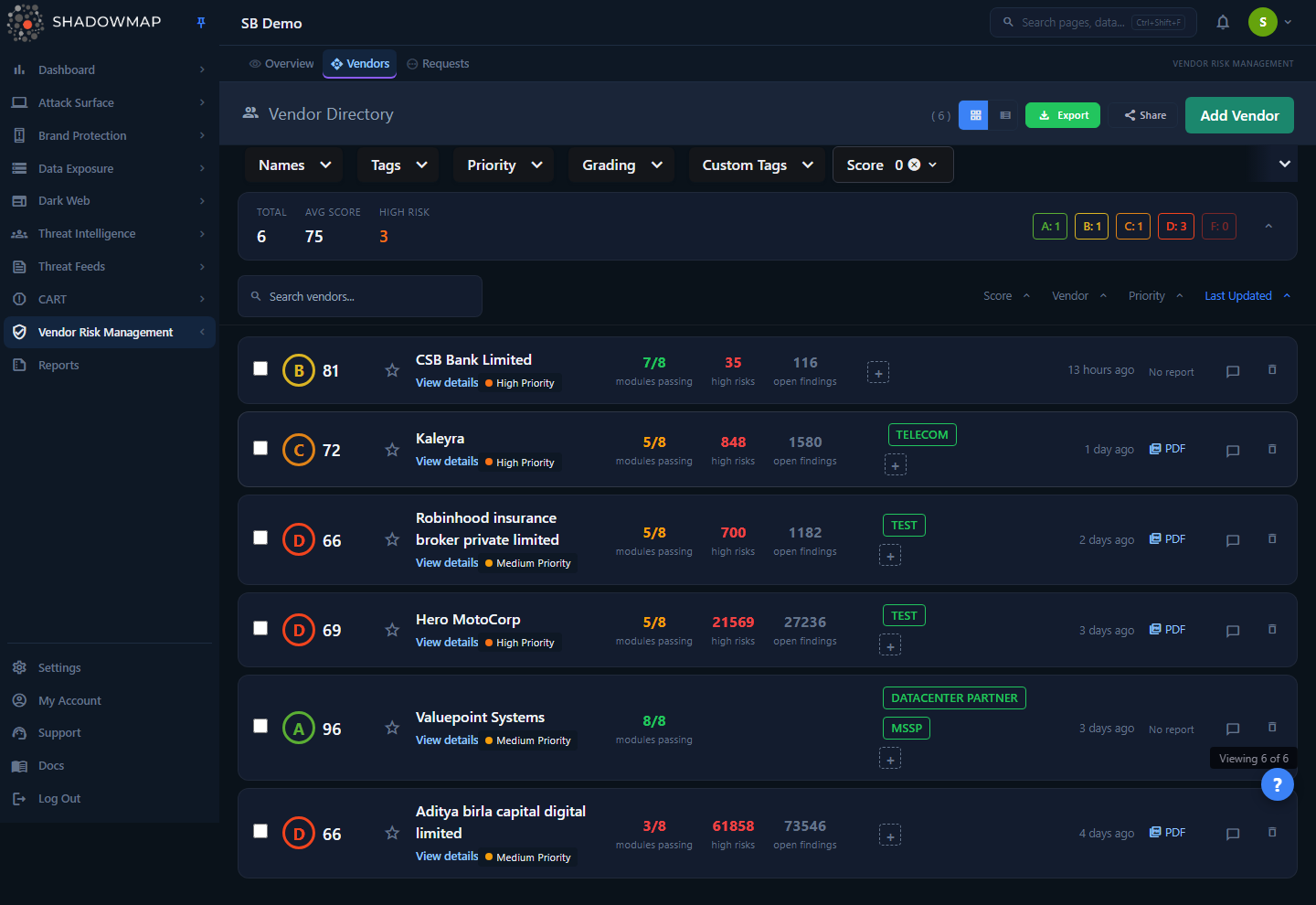
Each row (or card) is one tracked vendor. ShadowMap runs the same external attack-surface assessment it runs on your own organization against each vendor's internet-facing footprint, rolls the results up into a single 0–100 score and an A–F grade, and shows you how many findings are open versus closed. The page header shows the total vendor count and gives you Add Vendor, Share, Export, and a card/table view toggle. A metrics strip beneath the filters summarizes the whole portfolio: total vendors, average score, high-risk count, and a per-grade breakdown.
The list is the entry point to a per-vendor detail view — click any row to drill into that vendor's category-by-category breakdown and findings.
How it works
These are the mechanics you cannot infer from the UI:
Where the score comes from
A vendor's score is not a single measurement. ShadowMap assesses the vendor across several security categories — the same categories used by your organization's Security Rating — and the headline final_score is the rounded average of the per-category scores (ROUND(AVG(category_score))). Each category is itself scored 0–100 based on the findings discovered on the vendor's external surface.
The category set is:
| Category | What it measures |
|---|---|
| Vulnerability Management | Known CVEs and exposed vulnerable services on the vendor's surface |
| Network Security | Exposed ports, services, and network-layer weaknesses |
| Application Security | Web application issues and misconfigurations |
| Encryption & Certificates | TLS/SSL configuration, certificate validity and hygiene |
| Email & DNS Security | SPF/DKIM/DMARC and DNS-layer posture |
| Dark Web & Threat Intelligence | Dark-web mentions, leaked data, and threat signals tied to the vendor |
| Data Exposure | Leaked credentials, files, buckets, and other exposed data |
| Brand Protection | Phishing, impersonation, and brand-abuse activity targeting the vendor |
Legacy category vendors
Vendors scored before the eight-category model may still carry the older category names — Threats, Dark Web, and Data Leaks. ShadowMap handles both, sorting the new categories first and these legacy names to the end. The Score filter's per-category checkboxes use the four-name set Brand Protection, Dark Web, Data Leaks, and Threats.
Grade thresholds
The letter grade shown on each row is derived directly from the score:
| Grade | Score range |
|---|---|
| A | 90–100 |
| B | 80–89 |
| C | 70–79 |
| D | 60–69 |
| F | 0–59 |
A category is considered passing when its individual score is 70 or higher (this drives the "modules passing" indicator on each card).
Priority is assigned by you, not computed
A vendor's priority (High / Medium / Low) is set when you add or request the vendor — it reflects how critical that supplier is to your business, not its score. It is independent of the grade: a low-priority vendor can have an F, and a high-priority vendor can have an A. The High Risk metric in the strip counts vendors you have flagged as High priority across your entire portfolio (not just the current page).
Open vs. closed findings
The Open and Closed counts are the sum of all findings across every category for that vendor — each category carries its own total_combined_open and total_combined_close, and the export rolls these up into a single open and a single closed total per vendor. For newer vendors, open-finding counts are read from per-risk-band data (high/medium/low) inside each category and summed; ShadowMap backfills these so the counts are always concrete integers rather than blank.
What "Add Vendor" actually does
When you add a vendor, you are mapping an organization ShadowMap already tracks to your account. The assessment data already exists — adding it simply makes it visible and scored in your directory. There is a hard cap of 2,000 tracked vendors per customer; beyond it the list fails loudly rather than silently truncating. If the supplier you want isn't in ShadowMap's tracked set, you submit a request instead (see Taking action).
Refresh cadence
Vendor scores are refreshed continuously as ShadowMap re-scans each tracked organization's external surface — the Last Updated column reflects when that vendor's record was last refreshed. Historical weekly scores are retained and appear in the API export as a per-vendor, per-week score progression.
Understanding the data
Card view vs. table view
Use the view toggle in the page header to switch between cards (default) and a dense table. Your choice is remembered across sessions.
Table columns:
| Column | Description |
|---|---|
| Name | Vendor name (click the row to open detail) |
| Grade | A–F letter badge, color-coded |
| Score | The 0–100 final_score |
| Priority | High / Medium / Low, set by you |
| Tags | Free-text tags (first two shown, rest collapsed to +N) |
| Open | Vendor-level open-findings count — not populated in the list response, so the table cell renders 0; the aggregate open count is surfaced in card view (open findings) and in the export |
| Closed | Vendor-level closed-findings count — likewise not populated in the list response, so the table cell renders 0 |
| Last Updated | Relative time since the record was last refreshed |
| Action | Comments and remove-vendor controls |
Card view shows the same data plus a richer risk summary per vendor: a modules passing ratio (categories scoring ≥70 out of total), a high risks count, an open findings count, custom tags inline, and a direct PDF report link when a vendor report has been generated.
Tags vs. custom tags
Two independent tagging systems coexist:
- Tags — applied when the vendor is added or requested (e.g. "Cloud", "Payments"). Filterable via the Tags filter.
- Custom tags — added ad hoc from the card view via the
+control; deletable inline with the×. Filterable via the Custom Tags filter. See Custom Tags for how tags work across modules.
Filtering & search
A free-text search box (top of the list) matches on vendor name and is debounced as you type. Alongside it are multi-select filters and a score slider:
| Filter | Behavior |
|---|---|
| Names | Restrict to specific vendor names |
| Tags | Filter by one or more vendor tags |
| Priority | High / Medium / Low |
| Grading | A / B / C / D / F (mapped to the score ranges above) |
| Custom Tags | Filter by analyst-added custom tags |
| Score | A 0–100 dual-handle range slider, with optional category checkboxes |
Score filter has two modes
With no category boxes checked, the score slider filters on the vendor's overall average score. Check one or more categories (Brand Protection, Dark Web, Data Leaks, Threats) and the slider instead filters on those individual category scores — letting you find, for example, every vendor whose Dark Web category scores below 60 regardless of its overall grade.
Active filters appear as removable chips below the filter bar; Clear all resets everything. All filter and sort state is written to the URL, so a filtered view can be bookmarked or shared as a link.
Sorting
Sort controls sit above the list. Click a label to sort; click again to flip ascending/descending:
| Sort option | Field |
|---|---|
| Score | final_score |
| Vendor | Name (alphabetical) |
| Priority | Priority label (alphabetical — High, Low, Medium) |
| Last Updated | Most recently refreshed |
The default sort is Last Updated, newest first.
Taking action
Add an existing vendor
- Click Add Vendor in the page header.
- In the modal, search for the vendor by name. Results labeled "Already tracked by ShadowMap" can be added directly.
- Click + Add, choose a Priority (required), optionally enter comma-separated Tags, and click Confirm.
The vendor appears in your directory immediately with its existing assessment data.
Request a new vendor
If the supplier is not in ShadowMap's tracked set:
- In the Add Vendor modal, use the Can't find your vendor? section.
- Enter the Vendor Name, pick a Priority, optionally add Tags, and Submit Request.
The request goes into the Vendor Requests queue, where ShadowMap onboards the vendor's surface before it begins scoring.
Per-vendor actions
| Action | Where | Notes |
|---|---|---|
| Open detail | Click row / View details | Opens the vendor detail page |
| Bookmark | Star icon | Saves to your bookmarks |
| Add / delete custom tag | + / × on a card | Ad-hoc analyst tagging |
| Comment | Comment icon in the Action cell | Supports comment templates |
| Open report | PDF link (card view) | Available when a vendor report exists |
| Remove vendor | Trash icon | Removes the vendor from your list — confirmation required, cannot be undone |
Bulk actions
Select vendors with the row checkboxes (or Space on the focused row) to reveal a floating action bar: Export, Share, and Remove the selected set. Bulk remove asks for confirmation and reports how many succeeded if any individual removal fails.
Export
Export (header or bulk bar) generates a downloadable vendor list as a background task. The export covers the full filtered set, and the API export variant additionally prepends weekly historical scores per vendor. See Exports for how export jobs are queued and retrieved.
Share
Share opens the sharing modal scoped to Vendor Risk Management, letting you push the current view (or selected vendors) to a configured integration. See Sharing & integrations.
Keyboard shortcuts
The list is keyboard-navigable. Press ? to open the shortcuts panel:
| Key | Action |
|---|---|
j / ↓ | Next vendor |
k / ↑ | Previous vendor |
Enter | Open vendor detail |
Space | Toggle selection |
Esc | Close help / clear selection |
? | Toggle shortcuts help |
See Keyboard shortcuts for the global reference.
Key metrics
The metrics strip (toggle it with the metrics button) summarizes your whole portfolio, not just the loaded page:
- Total — number of vendors you track.
- Avg Score — average
final_scoreacross loaded vendors. - High Risk — count of vendors you have marked High priority (counted across all pages, server-side).
- Grade breakdown — A/B/C/D/F counts, color-coded.
Common questions
Why does a vendor with a good overall grade still show open findings? The grade is the rounded average of category scores; a vendor can average well while one category still carries open findings. Open the detail view to see which category the findings sit in.
The Score filter isn't doing what I expect. Check whether you have category boxes ticked in the score dropdown. Unticked, the slider filters on overall average score. Ticked, it filters on the selected categories' individual scores — a stricter and narrower query.
Is priority the same as risk level? No. Priority is the business-criticality label you assign when adding the vendor. It does not change the score or grade, and the High Risk metric counts High-priority vendors specifically.
I can't find a vendor when I try to add it. ShadowMap can only add vendors it already tracks. Use Request New Vendor to have its external surface onboarded; the request lands in Vendor Requests.
What happens when I remove a vendor? Removal takes the vendor out of your directory (confirmation required). It does not delete ShadowMap's underlying assessment — you can add the vendor back later.
Is there a limit on how many vendors I can track? Yes — 2,000 vendors per customer. Beyond that the list will surface an error rather than silently dropping vendors.
Related
- Vendor Risk Management Overview — portfolio-level dashboards and trends across all your vendors.
- Vendor Detail — the per-vendor drill-down: category breakdown, findings, and report.
- Vendor Requests — the queue where requested vendors are onboarded.
- Security Rating — the same scoring model applied to your own organization; understanding it explains how vendor scores are produced.
- Exports and Custom Tags — cross-module features used here.