
Docker Containers
ShadowMap finds Docker images published to public registries that appear to belong to your organization, then inspects them for leaked secrets, internal application code, and configuration that should never have left your perimeter. A single image accidentally pushed to a public Docker Hub repo can expose hardcoded database credentials, API keys baked into an ENV instruction, or your entire microservice architecture in its layer history.
Overview
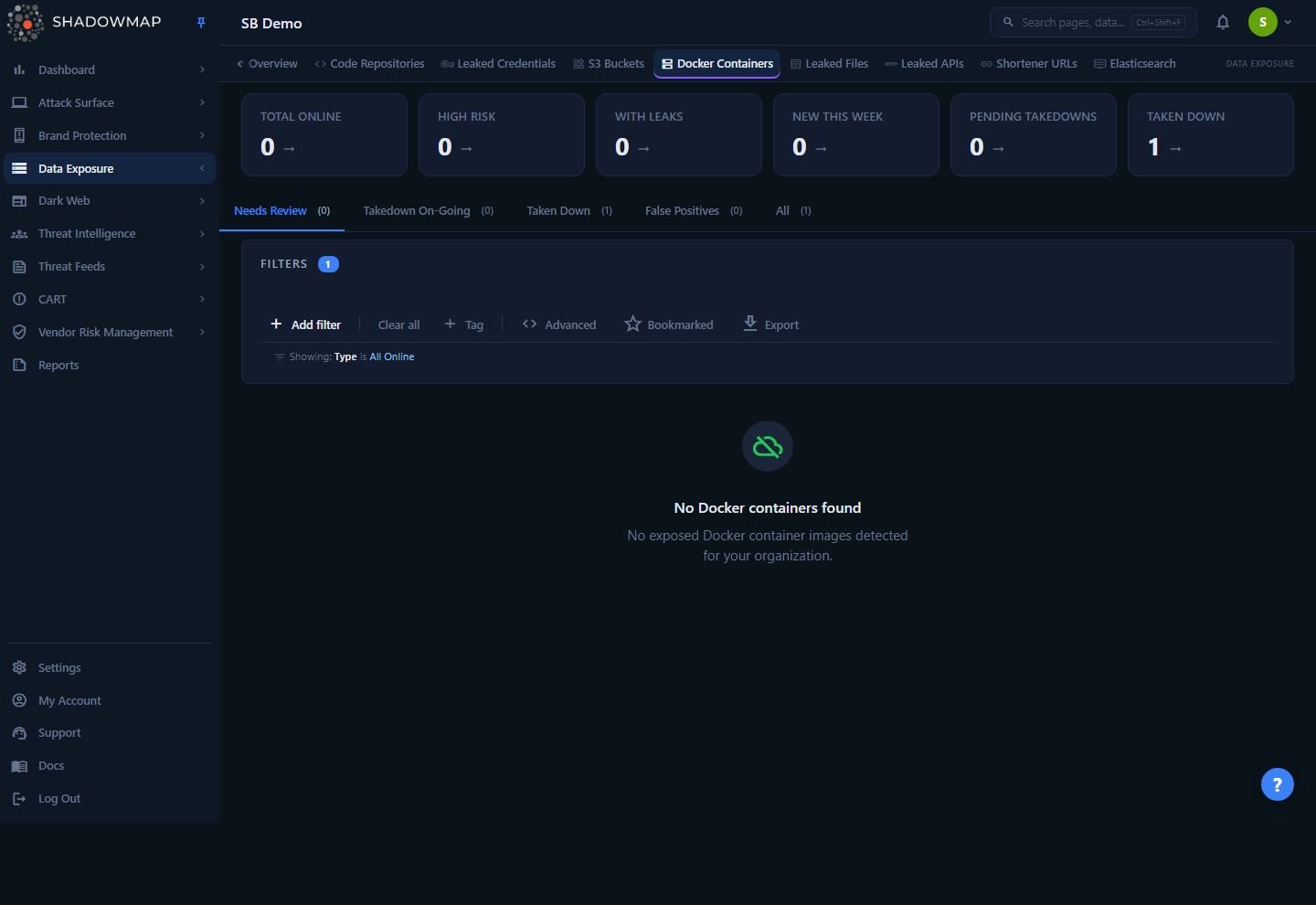
The Docker Containers module lists each discovered public image as a row keyed on publisher / image-name. Above the table you get a six-card metrics strip, an analytics panel (discovery trend, risk donut, top keywords, sources), and a tab bar that slices the queue by lifecycle state. The default landing tab is Needs Review — online images that have not yet been triaged or dismissed.
Every row links to a full investigation page with three tabs (Overview, Tags, Leaks), and a slide-in drawer gives you the same metadata plus comments without leaving the list. From the row, drawer, or detail page you can bookmark, comment, mark a false positive, or request a takedown.
Where this fits
Docker Containers is part of the Data Leaks module group, alongside Code Repositories, S3 Buckets, and Leaked Credentials. It answers a narrow but high-impact question: what of ours is sitting in a public container registry, and does it contain secrets?
How it works
These mechanics are not visible in the UI but determine what you see and how rows are ranked.
Discovery
ShadowMap continuously searches public Docker Hub for images that match your organization. Matching is keyword-driven: image names, publisher (account/organization) names, and image descriptions are compared against your configured brand names, domains, and keywords. The Keyword that triggered the match is stored on the finding and shown under the image name, so you always know why an image surfaced.
For every matched image, ShadowMap records the publisher, image name, pull (download) count, description, tag list, and per-tag Dockerfile layer history. It then scans the image contents for leaked secrets, which become the Leaks attached to the finding.
Source
The current source is Docker Hub (hub.docker.com). The publisher links out to hub.docker.com/u/<publisher> and the image links to hub.docker.com/r/<publisher>/<image>. The Sources chart in the analytics panel is future-proofed for additional registries, but Docker Hub is the only one populated today.
Confidence: is this really ours?
Public registries are full of unrelated images that happen to share a word with your brand. Each finding carries a Confidence rating — High, Moderate, or Low — reflecting how strongly ShadowMap believes the image belongs to your organization (strength of the keyword match, publisher association, and references inside the image).
A hidden but important rule: findings with a confidence score of zero are never shown. A global filter (confidence_score != 0) excludes them from every list, tab count, and metric on this page. In practice this means the queue is pre-filtered to plausibly-yours images; the High/Moderate/Low rating then helps you decide how aggressively to act.
Risk: how bad is it if it is ours?
Risk — High, Medium, or Low — is the severity of what was found inside the image, independent of confidence. An image with leaked credentials or private keys ranks higher than one containing only a public, non-sensitive base. Risk is what the default sort prioritises.
Read the two ratings together
Confidence answers "is this ours?"; Risk answers "how dangerous is the exposure?". A High Risk / High Confidence image — a confirmed-yours image with secrets in it — is your top priority. A High Risk / Low Confidence row warrants a quick ownership check before you invest in a takedown.
Default ranking
The list sorts by Risk descending by default, using a fixed severity order rather than alphabetical: high → medium → low → informational → everything else. Within the same risk band, rows are tiebroken by confidence score (highest first), so the most-likely-yours, most-dangerous images float to the top. Clicking any sortable column header overrides this with a single-column sort.
Leaks: the actual secrets
The headline value of this module is the Leaks tab. ShadowMap runs secret-detection rules across the files inside each image and records every hit: the detection rule that fired, the offending value, the file path, the exact line and line number, and (where available) the commit author and email. Each leak has its own online/takendown status. The With Leaks metric counts how many of your online images contain at least one detected secret — this is usually the number to act on first.
AI assessment (where enabled)
For tenants with AI review enabled, ShadowMap layers an advisory machine assessment over each finding. It surfaces as three optional columns — AI Verdict, AI Score, and AI Tags — and two matching filter fields (AI Assessment and AI Tags). The assessment is advisory: it never changes a finding's status on your behalf. Images the model filters out of the live queue are moved to the Filtered By AI tab rather than Needs Review, so nothing is hidden — you still review them on a dedicated tab. When your tenant does not have AI review enabled, the AI columns, filters, and the AI Score sort are hidden entirely.
Status, tabs, and the triage lifecycle
An image's state is tracked across three independent axes:
- Response status — the triage axis: Needs Review (untriaged), Investigating (an analyst is working it), or Filtered by AI (set by the AI review).
- Availability — the string status (
onlineortakendown) plus the takedown-request workflow, which together drive Requested Takedown, Taken Down, and Offline. - Dismissal — the
is_bad_imageflag for analyst-dismissed false positives, which drives Dismissed.
The tab bar exposes seven tabs, one per lifecycle bucket:
| Tab | What it shows |
|---|---|
| Needs Review | Online, non-dismissed images that have not been triaged — the live exposure queue (default) |
| Investigating | Images an analyst has moved to the Investigating state |
| Dismissed | Images dismissed via "Mark as False Positive" (is_bad_image) |
| Requested Takedown | Images with an active takedown request that has not yet completed |
| Taken Down | Images ShadowMap took down — a takedown was filed and has completed (status takendown) |
| Offline | Images no longer online that ShadowMap did not take down (the publisher removed them) |
| Filtered By AI | Images the AI review filtered out of the Needs Review queue |
"Requested Takedown" is computed across the takedown system, not stored on the image — it reflects whether a takedown request for this image exists and is still in flight. Taken Down and Offline both mean the image is gone from the registry; they differ only in attribution — whether the removal was ShadowMap's own takedown or the publisher's action.
Understanding the data
Each row in the table shows the following. The Image column is always visible; the rest can be toggled with the column customizer in the page header.
| Column | Description |
|---|---|
| Image | publisher / image-name, linked to the detail page. The matching keyword appears beneath it. |
| Source | The registry the image was found on (currently Docker Hub). |
| Risk | Severity of the exposure inside the image: High, Medium, or Low. |
| Confidence | Likelihood the image belongs to you: High, Moderate, or Low. |
| Status | Lifecycle state: Online or Taken Down. |
| AI Verdict | Advisory AI review verdict. Shown only when AI review is enabled for your tenant. |
| AI Score | Advisory AI review score (sortable). Shown only when AI review is enabled. |
| AI Tags | Advisory AI-generated tags. Shown only when AI review is enabled. |
| Takedown | Current takedown-request state for the image, if any. |
| Downloads | Pull count on the registry, abbreviated (e.g. 12.4K, 3.1M). A high pull count means the image — and any secrets in it — has been widely fetched. |
| Last Seen | When ShadowMap last verified the image, shown as relative time (e.g. "3 days ago"). |
The three AI columns appear only when AI review is enabled for your tenant; otherwise they are hidden and cannot be toggled on. Sortable columns are Source, Risk, Confidence, Downloads, and Last Seen — plus AI Score where AI review is enabled.
Downloads matter for response
Treat any secret found in a high-pull-count image as compromised the moment you see it. Even after the image is deleted, anyone who pulled it retains a local copy of every layer — rotation, not deletion, is the real remediation.
Filtering and search
The filter bar supports field-based filters that combine with AND/OR logic, plus a free-text keyword search across image data. Available filter fields:
| Filter | Filters on |
|---|---|
| Source | Registry source |
| Risk | High / Medium / Low |
| Confidence | High / Moderate / Low |
| Status | Online / Taken Down |
| Keyword | The keyword that matched the image (substring match) |
| Publisher | The publishing account/organization |
| First Seen | Discovery date — backs the "New This Week" drill-down |
| Bookmarked | Limit to bookmarked images |
| AI Assessment | The advisory AI verdict. Shown only when AI review is enabled for your tenant. |
| AI Tags | The advisory AI-generated tags. Shown only when AI review is enabled. |
Two extra controls sit beside the filter bar:
- Bookmarked (star toggle) — show only images you have bookmarked.
- Export — generate an Excel export of the current result set. The export honours your active filters, sort column, and search term, so the file matches exactly what is on screen.
Metrics strip
Six clickable KPI cards summarise posture. Clicking a card drills the list into the matching view:
| Card | Counts | Click navigates to |
|---|---|---|
| Total Online | Online, non-dismissed images | Needs Review |
| High Risk | Online images with High risk | Needs Review, filtered to Risk = High |
| With Leaks | Online images containing at least one detected secret | Not clickable — display only (no single list filter matches this set) |
| New This Week | Images first seen in the last 7 days (any status) | All statuses, filtered to First Seen in the last 7 days |
| Pending Takedowns | Images with an active, incomplete takedown request | Requested Takedown |
| Taken Down | Images with status Taken Down | Taken Down |
The analytics panel below adds a six-month Container Discovery Trend line chart, a Risk Distribution donut, and Top Keywords / Sources bar lists. Both the metrics strip and analytics panel can be collapsed from the page header.
Detail view
Clicking an image (or "Open full page" from the drawer) opens its investigation page, titled publisher / image-name. The header carries status, risk, and confidence badges, a View on Docker Hub link, and the action menu (see Taking action). It has three tabs.
Overview tab
A two-card layout:
- Image Details — Publisher (linked to their registry profile), Image Name, Source, Risk, Confidence, Status, Downloads, the matching Keyword, First Seen, and Last Seen.
- Description — the image's published description/overview, useful for confirming ownership and intent.
Tags tab
Lists every tag (version) of the image — latest, v1.2.3, dev, and so on. For each tag you get the tag name, size in MB, who last updated it, the last-pushed time, and the layer hash. Clicking a tag opens the layer view for that tag.
The layer view renders the tag's Dockerfile instruction history in order, with syntax highlighting on Dockerfile keywords (FROM, RUN, COPY, ENV, EXPOSE, ADD, etc.), flags, and quoted strings. Layers that look sensitive — ENV lines referencing keys/secrets/passwords/tokens, or COPY/ADD instructions that pull in .env or credentials files (with COPY also flagging .key and .pem files) — are flagged with a red warning marker and highlighted border. This is where you find how a secret got baked in.
Leaks tab
The list of detected secrets in the image. A left sidebar summarises leaks by Status and by Detection Rule; the main column shows one card per leak with:
- Status (online / taken down) and the Rule that detected it
- Author and Email where available
- The File path the secret was found in
- The Offender — the matched secret value — rendered in red
- The exact line content and line number
- A last-seen timestamp
Results load incrementally as you scroll. If a container has no detected secrets the tab shows "No leaks found".
Taking action
The following actions are available from the row, the detail-page drawer/header, and the bulk action bar:
| Action | Effect |
|---|---|
| Bookmark | Flag the image for quick retrieval via the Bookmarked filter. |
| Comment | Add internal notes, free-text or from a comment template. |
| Mark as False Positive | Move the image to the Dismissed tab (is_bad_image). Use this when the image is not actually yours. |
| Remove from False Positives | Restore a dismissed image back to the active queue. |
| Pin / Unpin | Pin an important image for quick reference. Pin is offered on images that are not dismissed; Unpin appears once an image is pinned. Available from the detail page's action menu. |
| Request Takedown | Submit a takedown request through ShadowMap's takedown service to get the public image removed. |
| Share via integration | Push the finding to a connected integration (e.g. ServiceNow CMDB, Jira, Slack). Available from the detail page. |
Selecting rows with the checkboxes reveals a bulk action bar supporting Bookmark, False Positive, and (where permitted) Takedown across the whole selection at once.
Keyboard shortcuts
On the list, j / k move the drawer to the next / previous image, s bookmarks the open image, Space selects it, and Esc closes the drawer.
Request Takedown is only shown to users whose role permits takedowns. See Takedowns for how requests are dispatched and tracked, and Roles & Permissions for who can trigger them.
Recommended response
When you confirm a leaked-secret finding is genuinely yours:
- Verify ownership. Check the publisher, description, and layer history against what you actually publish. Dismiss the image as a false positive if it is not yours.
- Inspect the layers. Open the Tags tab, click the affected tag to open its layer view (or run
docker history --no-trunc <image>locally) to find exactly which instruction introduced the secret. - Rotate every exposed credential. Any value in the Leaks tab must be treated as compromised — anyone who pulled the image has a permanent copy. Deleting the image does not undo this.
- Make the image private or delete it. Remove public access on the registry once credentials are rotated.
- Fix the pipeline. Determine how the image went public and stop it recurring — use multi-stage builds and runtime secret injection so secrets never reach a layer.
- Audit adjacent images. If one CI/CD image leaked, check the rest of the publisher's images for the same mistake.
Common questions
Why does an image show up that clearly is not ours? Discovery is keyword-based, so an unrelated image sharing a brand word can match. That is what Confidence is for — Low-confidence rows are exactly the ones to sanity-check. If it is not yours, "Mark as False Positive" removes it from the active queue and teaches the system.
What is the difference between Risk and Confidence? Confidence is the probability the image belongs to your organization. Risk is the severity of what was found inside it. They are scored independently; prioritise High Risk + High Confidence first.
Why is the "With Leaks" number smaller than "Total Online"? "Total Online" counts every online image attributed to you; "With Leaks" counts only those where the secret scanner found at least one credential or key. The latter is your true remediation backlog.
An image is marked Taken Down — am I safe? The image is no longer publicly available, which removes the ongoing exposure. It does not un-leak secrets that were already pulled. Always rotate credentials found in a taken-down image.
Does deleting the image remove the risk? No. Container layers are content-addressable and cached locally by anyone who pulled the image. Rotation of every exposed secret is the only reliable remediation; deletion just stops new exposure.
Why can't I see the Request Takedown button? Takedown actions are permission-gated. If your role does not include takedown rights, the button is hidden on the row, drawer, and detail page. Ask an administrator or see Roles & Permissions.
Can I get these findings out of the dashboard? Yes — use Export for an Excel file matching your current filters and sort, push individual findings through Share via integration, or include the module in scheduled Reports.
Related
- Code Repositories — the same class of secret-leak detection applied to public source-code repos; container leaks and repo leaks often trace back to the same pipeline mistake.
- S3 Buckets — public cloud storage exposing your files and configuration.
- Leaked Credentials — credentials surfaced from breaches and leaks; pair with the secrets you rotate from container findings.
- Data Leaks Overview — the full Data Leaks queue and how its sources fit together.
- Takedowns — how takedown requests from this module are dispatched and tracked.
- Exports — formats, filtering behaviour, and delivery for exported findings.