
Vendor Risk Management
Vendor Risk Management (VRM) continuously scores the external security posture of your third parties — suppliers, SaaS providers, processors, partners — using the same outside-in methodology ShadowMap applies to your own attack surface. Track each vendor's security rating over time, drill into the findings driving it, and spot vendors whose posture is degrading before that degradation becomes your incident.
Overview
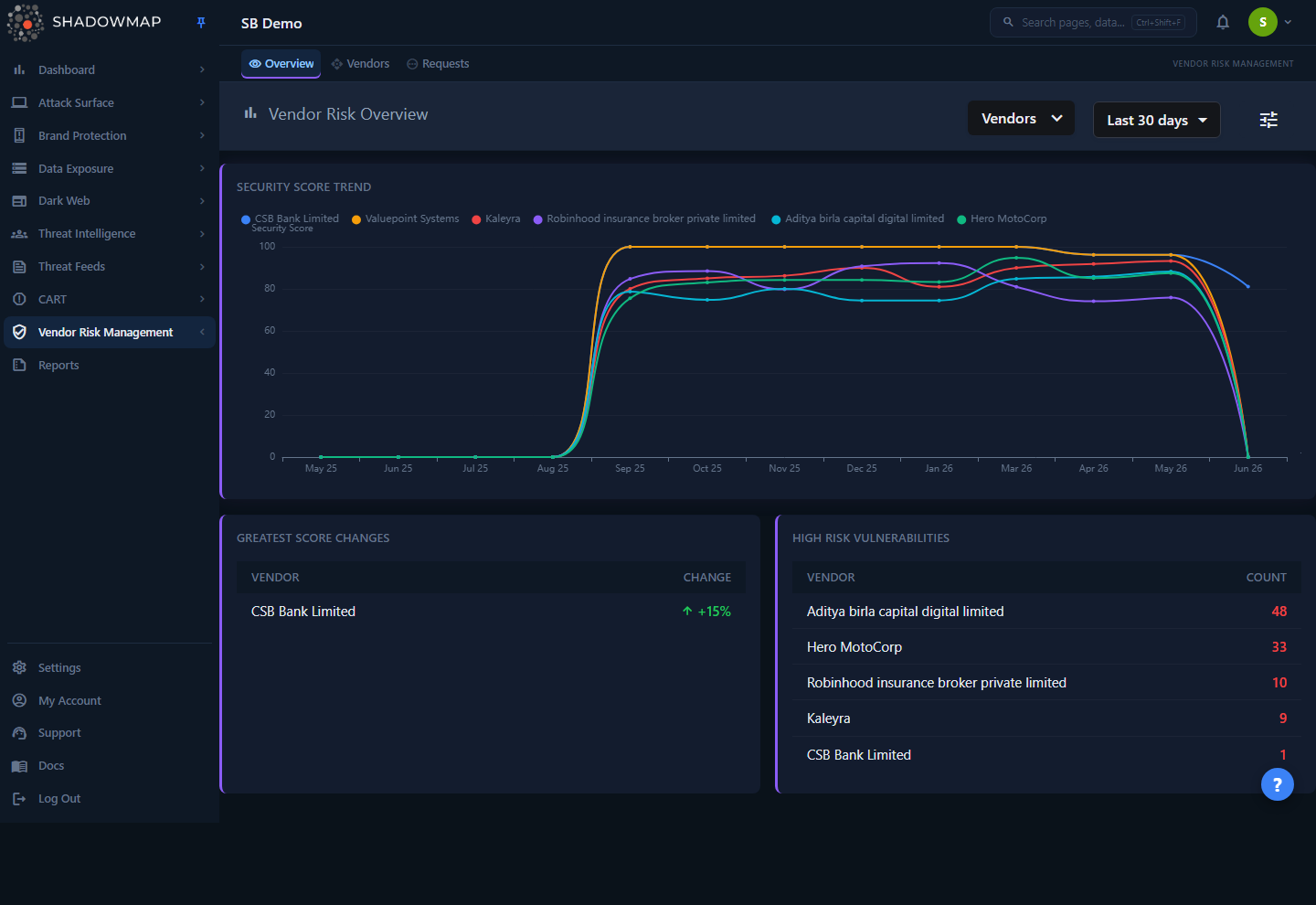
The VRM Overview is a portfolio-level dashboard for everyone you monitor. Instead of opening vendors one at a time, it surfaces the movements and exposures that matter across the whole portfolio for a chosen time window: who moved the most, who has high-risk vulnerabilities, who is appearing in dark-web breaches, and what is happening in near-real time.
Two controls at the top scope the whole page:
- Vendors filter — narrow every widget to one or more specific vendors. (Hidden when you are signed in under a vendor role, which only ever sees its own data.)
- Date range —
Today,Last 7 days,Last 30 days(default), orThis Year. Every card recomputes against this window.
Both selections are written to the URL, so a scoped Overview is a shareable, bookmarkable link that survives a reload or back-navigation.
Administrators also get a settings button (the tune icon) that jumps to the VRM email-alert preferences under global settings.
The module has three tabs:
| Tab | Path | What it is |
|---|---|---|
| Overview | /vendor-risk-management/overview | This portfolio dashboard |
| Vendor Directory | /vendor-risk-management/vendors | The searchable list of every monitored vendor, with grades, scores, tags, and per-vendor detail |
| Vendor Requests | /vendor-risk-management/requests | The queue of "please add this vendor" requests and their status |
How it works
The mechanics below are not visible in the UI but determine everything you see.
Outside-in, no vendor involvement. ShadowMap discovers and scans each vendor's externally visible footprint — domains, subdomains, IPs, certificates, exposed services, leaked data, dark-web mentions — exactly the way it scans your own organization. Nothing is installed on the vendor side, and the vendor is not notified that you are monitoring them. Scores therefore reflect externally observable posture only; internal controls (WAFs, segmentation, internal patching) are invisible to an outside-in scan, so a clean external score is one input to vendor risk, not a clearance.
The score and grade. Each vendor carries a final_score from 0–100, rendered as a letter grade by fixed thresholds:
| Grade | Score range |
|---|---|
| A | 90–100 |
| B | 80–89 |
| C | 70–79 |
| D | 60–69 |
| F | below 60 |
A vendor is treated as a passing module when its category score is 70 or above (grade C or better). The score is computed from the same category engine that powers your own Security Rating — see the algorithm page for how categories roll up into a single number.
Categories. Vendor scores break down into the same security categories ShadowMap measures for you. In the Vendor Directory the score filter exposes four headline category buckets — Brand Protection, Dark Web, Data Leaks, and Threats — and each vendor's detail view lists its full per-category coverage with open/closed finding counts and high/medium/low severity splits.
Cadence. Vendor posture is recalculated on the same recurring scan cycle as the rest of ShadowMap, so scores and trends refresh continuously rather than on demand. The "last updated" timestamp on each vendor reflects its most recent recalculation. Score-trend charts plot the resulting history so you can see direction, not just a point-in-time number.
Priority is yours, not computed. Each vendor carries a High / Medium / Low priority that you assign based on how critical the vendor is to your business. It is independent of the security score — a low-priority vendor can have a poor grade, and a critical vendor can score well. Priority drives the "High Risk" count and lets you triage score drops by business impact.
Shared catalog. Vendors are drawn from ShadowMap's existing scan catalog. When you add a vendor, you are subscribing to an organization ShadowMap already tracks — its rating is available immediately or on its next scan. If the vendor is not yet in the catalog, you submit a request and ShadowMap onboards it for scanning.
The Overview widgets
Each card scopes to the selected vendors and date range. Cards backed by per-vendor findings are clickable: selecting a row opens a drill-down panel listing the underlying records, and the vendor name links straight to that vendor's detail page.
| Widget | Shows | Interactive |
|---|---|---|
| Security Score Trend | A multi-line chart of security score (0–100) over the period, one line per vendor (up to 8 plotted) | Hover for values |
| Greatest Score Changes | Vendors ranked by how much their score moved, with an up/down arrow and percentage. Up = improving, down = degrading | — |
| High Risk Vulnerabilities | Vendors with the most high-risk vulnerabilities, by count | Row → drill-down; name → detail |
| Dark Web Exposure | Recent dark-web breach events affecting your vendors, grouped by breach type and date | Row → drill-down; name → detail |
| Users Compromised | Vendors with the most compromised user accounts surfaced in breach data | Row → drill-down; name → detail |
| Phishing Pages | Vendors with phishing pages detected impersonating or targeting them | Row → drill-down; name → detail |
| Common Vulnerabilities Across Vendors | Vulnerabilities that recur across multiple vendors, with the count of affected vendors — your portfolio-wide systemic exposures | — |
| Recent Activity Feed | A scrollable, dated stream of new findings across all monitored vendors | Row → drill-down; name → detail |
Reading "Greatest Score Changes"
A downward arrow on a vendor here is your early-warning signal: that vendor's external posture deteriorated within the window. Pair it with the Dark Web Exposure and High Risk Vulnerabilities cards to see whether the drop is driven by a fresh breach or new vulnerabilities, then open the vendor detail to confirm.
The Vendor Directory
The Vendor Directory (/vendor-risk-management/vendors) is the working list of everyone you monitor. It supports a card view and a table view (toggle in the header; your choice is remembered), infinite scroll, multi-select, and bulk actions.
Each vendor row/card shows:
| Field | Description |
|---|---|
| Grade + Score | The A–F badge and the 0–100 final_score |
| Name | Vendor organization name, linking to its detail view |
| Priority | Your assigned High / Medium / Low, with a color dot |
| Risk summary | "X / Y modules passing" (passing = category score ≥ 70), plus high-risk and open-finding counts |
| Tags | System tags applied to the vendor |
| Custom tags | Your own free-text tags (add with +, remove with ×) |
| Last updated | Relative time since the score was recalculated |
| Report | A link to the vendor's PDF security report, when available |
| Comments | Threaded comments on the vendor, with comment-template support |
A metrics strip above the list summarizes the current result set: Total vendors, Average Score, High Risk count, and a per-grade tally (A/B/C/D/F). You can collapse it.
Filtering, search, and sort
- Search — free-text match on vendor name.
- Filters — Names, Tags, Priority (High/Medium/Low), Grading (A–F), and Custom Tags. Active filters render as removable chips.
- Score filter — a 0–100 range slider, optionally constrained to one or more of the Brand Protection / Dark Web / Data Leaks / Threats category buckets, so you can ask "show me vendors scoring under 60 on Data Leaks."
- Sort — by Score, Vendor name, Priority, or Last Updated; click again to flip ascending/descending.
Filter and sort state is written to the URL, so a filtered view is a shareable, bookmarkable link.
Vendor detail
Opening a vendor (click the row or View details) loads a dedicated page with a time-range selector and these tabs:
| Tab | Contents |
|---|---|
| Overview | Open vs. closed finding counts, highest- and lowest-scoring categories, the score-trend chart, a clickable threat-exposure summary, and Category Coverage — every tracked category with its score, open/closed counts, and high/medium/low severity breakdown |
| Vulnerabilities | High-risk and common vulnerabilities found on the vendor's surface, as record tables |
| Dark Web & Breaches | Dark-web discussions and data-breach records tied to the vendor, as record tables |
| Threat Exposure | Phishing URLs and Telegram conversations involving the vendor, as record tables |
| Notes | Comment thread for the vendor |
From the detail header you can change the time span, bookmark the vendor, share it, export its findings to CSV, and download its PDF report when one exists.
Managing your portfolio
- Add Vendor — search the ShadowMap catalog by name; for a match, set a priority and optional tags and confirm. The vendor's rating appears immediately or on its next scan.
- Request a vendor — if the organization isn't in the catalog ("Can't find your vendor?"), submit a request with a name, priority, and tags. It lands in the Vendor Requests queue for ShadowMap to onboard.
- Bookmark — star vendors for quick access.
- Custom tags — organize the portfolio your way (e.g.
payment,tier-1,SOC2-required,cloud-provider). - Remove — stop monitoring a vendor (single or bulk). This is confirmed and removes the vendor from your list.
- Export / Share — export the filtered list, or share the current view with teammates.
Vendor Requests
The Vendor Requests tab (/vendor-risk-management/requests) is the lifecycle queue for vendors that had to be onboarded rather than picked from the catalog. Requests are organized into status tabs, each with a live count:
| Status | Meaning |
|---|---|
| Pending | Submitted, awaiting ShadowMap action |
| In Progress | Being onboarded / scanned |
| Active | Onboarded and now monitored — it appears in your Vendor Directory |
| Rejected | Could not be onboarded |
Each row lists the requested vendor, your chosen priority and tags, current status, request date, and any note. Administrators get an Actions control to move a request between statuses and attach a note explaining the change.
Common questions
Will my vendors know I'm monitoring them? No. VRM is built entirely on external scanning of publicly observable data. There is no agent, no questionnaire, and no notification to the vendor.
How often do vendor scores update? Continuously, on the same recurring scan cycle as the rest of the platform. The "last updated" time on each vendor shows when its score was most recently recalculated.
What does the grade actually measure? Externally visible security posture, rolled up across categories into a 0–100 score and bucketed into A–F (A ≥ 90, B ≥ 80, C ≥ 70, D ≥ 60, F < 60). It uses the same engine as your own Security Rating. It does not see internal controls, so treat a good score as evidence of external hygiene, not a full assurance.
What's the difference between priority and score? Score is computed by ShadowMap from external findings. Priority (High/Medium/Low) is assigned by you to capture business criticality. Use priority to decide which score drops demand immediate attention.
A vendor isn't in the catalog — can I still track it? Yes. Use "Request New Vendor" to submit it; it enters the Vendor Requests queue and becomes Active once ShadowMap onboards it.
A score looks wrong — can I dispute it? Scores are derived from externally observable data, and internal controls can mask issues from an outside-in scan. If you believe a specific finding is incorrect, raise it with support.
Is there a limit on how many vendors I can monitor? Yes — the platform enforces a hard cap of 2,000 monitored vendors per customer. Within that ceiling, the practical number depends on your plan.
Related
- Security Rating — your own organization's rating, produced by the same outside-in methodology used for vendors.
- Security Rating Algorithm — how category findings roll up into the 0–100 score and A–F grade you see on every vendor.
- Data Breaches — the breach intelligence behind the Dark Web Exposure and Users Compromised cards.
- Phishing & Impersonations — the source of the Phishing Pages findings shown per vendor.
- Vulnerability Overview — context on the high-risk and common vulnerabilities surfaced in vendor detail.
- SLA Policies — configure alerting so a vendor score drop or new finding raises a ticket.
- Custom Tags and Saved Searches — organize and re-run filtered vendor views.
- Exports — pull vendor scores and findings for board, GRC, and audit reporting.