
Missing Assets
"We own this and ShadowMap isn't showing it" is one of the most common questions during onboarding and after an acquisition or new product launch. Most of the time the asset is tracked and is hidden by a filter, a permission, or a stale view — and the rest of the time there's a concrete reason (scope, attribution, or discovery timing) with a concrete fix. This page is the decision tree for working out which case you're in before you open a ticket.
Overview
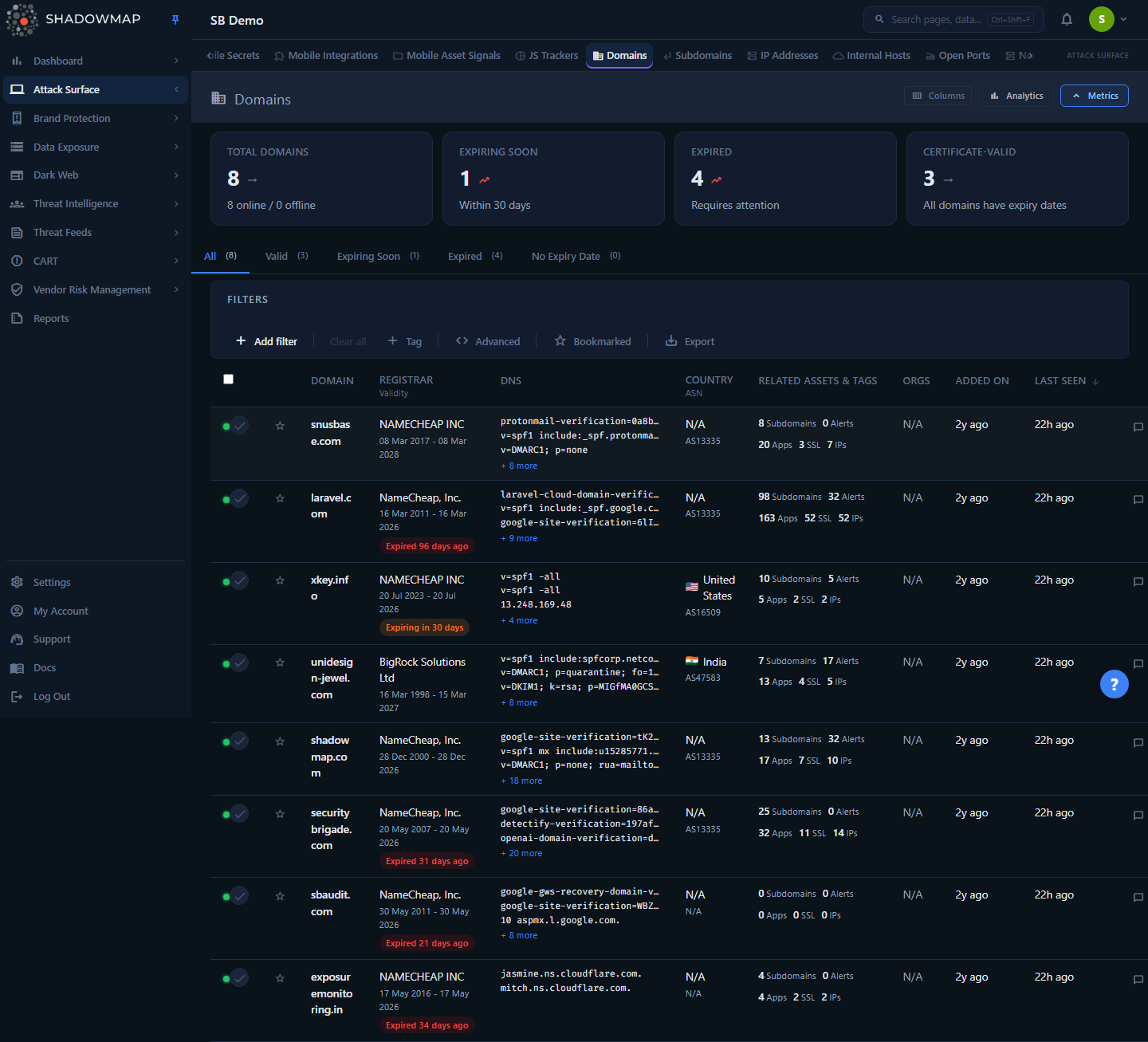
The Domains view is the root of the asset tree. If an expected asset is missing, this — and the sibling Subdomains, IP Addresses, and Internal Hosts views — is where you start.
ShadowMap's inventory is built by automated discovery, not by hand. You don't type assets into a table; the platform attributes them to your organization from public signals (WHOIS, IP-space ownership, certificate transparency, DNS) and re-confirms them every scan. That has two consequences for troubleshooting:
- An asset can be present but hidden — narrowed out by an active filter, a status tab, a search term, a saved search, or a role that can't see the module at all.
- An asset can be legitimately absent — out of the configured scan scope, not yet discovered, below the attribution threshold, or intentionally excluded.
Work the present-but-hidden checks first (they're instant and account for most reports), then the genuinely-absent checks. The sections below are ordered that way.
How it works
These are the mechanics behind what does and doesn't appear, which you can't infer from any single screen.
Discovery is seeded, then it cascades
Everything in Asset Inventory descends from your seed domains — the root domains you (or your onboarding team) confirmed you own. From there the pipeline works outward:
- Seed domains → enumerate subdomains (passive DNS, certificate transparency logs, brute-force resolution, crawling).
- Subdomains → resolve to IP addresses.
- IPs → scanned for open ports and network services.
- Applications on those hosts → fingerprinted, matched against CVE data, and so on through the threat modules.
Because the whole tree hangs off the seed list, if a root domain isn't seeded, nothing under it — subdomains, IPs, apps, findings — is discovered either. A missing asset is very often a missing seed, one level up. Conversely, adding a seed domain produces a fresh tree of assets on the next scan cycle, not instantly.
"Missing" almost always means one of six things
| Cause | Class | How you confirm it | Fix |
|---|---|---|---|
| An active filter, tab, or search is excluding it | Present, hidden | Clear filters; switch to the All tab; empty the search box | Reset the view (below) |
| Your role can't see the module | Present, hidden | The whole section is absent from the nav | Request the read permission |
| It's Offline and you're on an Online-only view | Present, hidden | Check the Offline tab / status filter | Look on the right tab |
| The root domain isn't seeded (out of scope) | Absent | The apex isn't in Domains | Add the seed via onboarding/support |
| Not discovered yet (new / no public signal) | Absent | Brand-new cert/DNS, internal-only, or no resolvable record | Wait a scan cycle; verify it's public |
| Attribution / exclusion kept it out | Absent | No firing Confidence Attribution signal, or a deliberate scope exclusion | Raise with support to re-include |
Online/Offline is the single biggest false alarm
The status dot on every inventory row reflects the most recent scan, not a live probe. Offline does not mean removed. An Offline domain, subdomain, IP, or internal host is still in your inventory with its full history — it simply didn't respond on the last pass (down, firewalled, moved, or decommissioned). ShadowMap keeps it because an asset that goes dark and returns is still part of your attack surface.
The trap: the Online status tab and Online status filters hide Offline rows. If you're looking at a status-scoped view and the asset is currently Offline, it will look "missing" while sitting one tab over. Always check the All or Offline tab before concluding an asset is gone.
For subdomains specifically, status is derived as the maximum across all observations of that hostname — if any tracked IP for the name is Online, the subdomain reports Online. It only reads Offline when none of its observations currently resolve and respond.
Findings are retained, not aged out
A finding (an alert, an open port, a leaked credential) is not deleted because it got old. Every scan re-evaluates whether the underlying issue is still present and changes the finding's status accordingly — an open port that closes flips the finding to a closed/superseded state, but the row stays for history and trend continuity. So if a finding you remember has "disappeared," it has almost certainly changed status, not been purged. Check the closed/resolved status tab or filter rather than assuming data loss. (See Data Retention for exactly what persists versus what expires.)
Internal hosts have one extra dedup rule
Internal Hosts only lists hostnames that were referenced internally but did not resolve to a public IP during the scan. If a host you expected on the Internal Hosts page resolved to a public IP, ShadowMap treats it as a normal external asset and it shows up under Subdomains instead — not on Internal Hosts. So "missing from Internal Hosts" frequently means "correctly classified as external." Check Subdomains before reporting it.
New assets appear on a cadence, not in real time
Discovery runs on scan cycles. A newly created subdomain is typically detected within hours of its certificate being issued (it lands in a public CT log) or its DNS record appearing — but "typically within hours" is not "immediately." A seed domain you just added won't have a populated subtree until the next discovery pass completes. If you stood something up minutes ago, give it a cycle.
Working the checklist
Run these in order. The first four are instant and resolve the large majority of "missing asset" reports.
1. Reset the view (clears filters, tabs, and search)
A narrowed view is the number-one cause. On the relevant inventory page:
- Clear the search box — a leftover search term silently scopes the list.
- Switch to the
Alltab —Online/Offline(andValid/Expiring Soon/Expired/Unverified/No Expiry Dateon Domains) are pre-built filters that hide everything else. On Domains, theUnverifiedtab holds domains that would readExpiredorExpiring Soonbut whose WHOIS record is stale (or last refreshed unsuccessfully); because a domain's expiry only ever moves forward, a stale "expired" claim is demoted here rather than shown as alarming. A domain you last saw underExpiredorExpiring Sooncan quietly move toUnverified, so check it (orAll) if a domain has dropped off the validity tab you expected. - Remove every filter rule in the filter bar, including any
AND/ORconditions you forgot were applied. - Turn off the Bookmarked toggle if it's on — it restricts the list to your starred items only.
- Check the URL — ShadowMap preserves filter and tab state in the URL, so an old shared/bookmarked link can load you straight into a filtered view. Navigate to the module from the nav fresh.
- Check active Saved Searches — a saved search you applied earlier may still be scoping the page.
TIP
If you're not sure what's filtering you, the fastest reset is to click the module in the left nav again (not the browser back button) and confirm the All tab is selected with an empty search bar and no filter chips.
2. Confirm you can see the module at all
Asset Inventory and the threat modules are gated by read permissions. If your role lacks the relevant read permission, the entire section is missing from the navigation — which can look like "the asset is gone" when really the whole view is hidden from you.
- If you can't see Asset Inventory (Domains / Subdomains / IP Addresses / Internal Hosts) in the nav, you lack its read permission.
- If a colleague can see the asset and you can't, it's almost certainly a permission difference, not missing data.
Ask an admin to grant the read permission, or check your access against Roles & Permissions and the RBAC Permissions reference.
3. Check the right asset class and the Offline tab
Look in the correct sub-view, and don't assume Online:
- A root domain lives in Domains; a host under it (e.g.
api.example.com) lives in Subdomains. - An internal/non-public hostname lives in Internal Hosts — unless it resolved publicly, in which case it's under Subdomains (see the dedup rule above).
- An IP lives in IP Addresses.
- In every case, set the status tab to All (or Offline) so a currently-unreachable asset isn't hidden.
4. For a "missing" finding, check status instead of existence
If what's missing is a finding (an alert, port, vulnerability, or exposure) rather than an asset, it has most likely changed status, not vanished:
- Go to the relevant module (Alerts, Open Ports, Vulnerability Overview, etc.).
- Switch off any "open / needs review" scoping and look at closed / resolved items.
- Remember the finding can reopen on a later scan if the underlying issue returns — closure is a state, not a deletion.
5. Confirm the asset is actually public and resolvable
ShadowMap discovers what's observable from the internet. An asset will not be discovered if it:
- has no public DNS record (or resolves only on internal/split-horizon DNS),
- is not internet-reachable (purely internal, behind a VPN with no external footprint), or
- has no public signal at all — no certificate in CT logs, no passive-DNS history, nothing tying it to a seeded domain.
If it's genuinely internet-facing and resolvable but still absent after a scan cycle, move to the scope and attribution checks.
6. Confirm the root is in scope (seed domains)
If the apex domain isn't in Domains, nothing under it will be discovered. Seed domains are configured during onboarding (and updated through support/configuration) — they are not typed into the Domains table directly. Common gaps:
- A newly acquired company's domains were never added to your seed set.
- A new product line / TLD / ccTLD sits outside the seeded portfolio.
- An Scan Profiles Exclude rule is suppressing active scanning on that asset group, so scan-based findings (ports, service vulnerabilities) don't surface even though the asset is discovered. Exclusions reduce coverage silently — review them if a known host has no scan findings.
To add a seed domain or remove an exclusion, see step 7.
7. Check attribution, then raise it with support
If the asset is public, in a seeded portfolio, and still absent, the remaining cause is attribution. ShadowMap attributes domains using independent signals exposed on the domain's detail page as Confidence Attribution — three yes/no signals: Domain Owned (WHOIS / registration evidence), IP Owned (the IP space it resolves into is yours), and SSL Cert Linked (a certificate ties it back to your known assets):
- If none of those signals fired, ShadowMap couldn't confidently tie the asset to you, so it stayed out of the inventory.
- Conversely, if you see an asset you don't own (over-inclusion), the Confidence Attribution panel tells you which signal caused it to be attributed — and a weakly-attributed one is a candidate to flag for exclusion.
When you've ruled out filtering, permissions, status, public reachability, and scope, it's a genuine gap. Open a ticket with Support and include the exact host/domain/IP, evidence you own it (registrant, IP range, or certificate), and that it's internet-reachable. Support can add the seed, adjust scope, or correct attribution.
Quick diagnosis table
| Symptom | Most likely cause | First thing to try |
|---|---|---|
| "A domain I own isn't listed" | Root not seeded, or filtered view | Clear filters → if still absent, it's a seed/scope gap → support |
| "A subdomain vanished" | It's Offline and you're on the Online tab | Switch to All/Offline tab |
| "An IP I expect isn't here" | Not attributed, or filtered | Clear filters; confirm it's in a seeded ASN/range |
| "An internal host is missing" | It resolved publicly → now under Subdomains | Check Subdomains |
| "A finding disappeared" | Status changed (closed/resolved), not deleted | View closed/resolved status |
| "Whole module is missing from the nav" | Missing read permission | Check Roles & Permissions |
| "A brand-new host isn't showing" | Discovery cadence | Wait one scan cycle; confirm it's public |
| "Nothing under a domain I just added" | Subtree not yet built | Wait for the next discovery pass |
Common questions
I'm sure we own this domain — why isn't it here, and can I just add it myself? You can't type domains into the inventory; it's built by discovery seeded from your confirmed root domains. If the apex isn't in Domains, the seed list needs updating — that's done through onboarding/support, after which its subtree appears on the next scan cycle.
An asset shows Offline. Is it gone from ShadowMap? No. Offline reflects only the most recent scan. The asset stays in inventory with its full history and keeps being monitored; it just didn't respond last pass. Make sure you're on the All or Offline tab — the Online tab hides it.
A finding I remember is missing. Did ShadowMap lose my data? No. Findings are retained for the life of your subscription and aren't aged out. What changed is the finding's status — re-detection closed or superseded it. Look at the closed/resolved view; it can reopen if the issue returns. See Data Retention.
Why is my internal host missing from Internal Hosts?Internal Hosts excludes any hostname that resolved to a public IP during the scan — those are treated as external and listed under Subdomains. Check there before assuming it's missing.
A teammate sees an asset I can't. Why? Almost always a permissions difference. Asset Inventory and threat modules are gated by read permissions; without them the whole section is absent from your nav. Confirm your role against Roles & Permissions.
I just created a subdomain and it's not showing — is something broken? Discovery runs on scan cycles, not in real time. New subdomains usually appear within hours of their certificate hitting CT logs or DNS resolving, but a brand-new asset may need a cycle. If it's still absent after a scan and it's publicly resolvable, check scope and attribution.
I have a Scan Profile excluding some assets — why do they have no findings? An Exclude rule in Scan Profiles removes assets from active vulnerability scanning, so scan-based findings (open ports detail, service vulnerabilities) won't surface for them. The assets are still discovered in inventory; only active scanning is suppressed. Remove or narrow the exclusion to restore coverage.
The asset is public, seeded, and still missing. Now what? That's a genuine attribution/scope gap. Open a ticket via Support with the exact identifier, proof of ownership (registrant / IP range / certificate), and confirmation it's internet-reachable. Support can add the seed, fix scope, or correct attribution.
Related
- Asset Inventory — the discovery cascade and attribution model behind everything on this page.
- Domains — where seeded root domains and their Confidence Attribution signals live; the first place to check scope.
- Subdomains — Online/Offline grouping, and where publicly-resolving internal hostnames actually appear.
- IP Addresses and Internal Hosts — the other inventory classes to check for a missing asset.
- Scan Profiles — Exclude rules that can silently suppress active-scan findings on in-scope assets.
- Data Retention — why findings change status instead of being deleted.
- Roles & Permissions and RBAC Permissions — read permissions that hide whole modules from the nav.
- Saved Searches — a stored query that may be scoping the page you're looking at.
- Contacting Support — how to raise a genuine scope/attribution gap, and what to include.