
Settings Overview
Settings is the administrative control plane for your ShadowMap tenant. It is where you manage who has access (members, teams, roles), what feeds your attack surface (integrations, cloud sources, credential checks), how findings are governed (SLA policies, tag rules, scan profiles), and how the platform behaves at the organisation level (global settings, alert preferences, audit and activity logs).
Overview
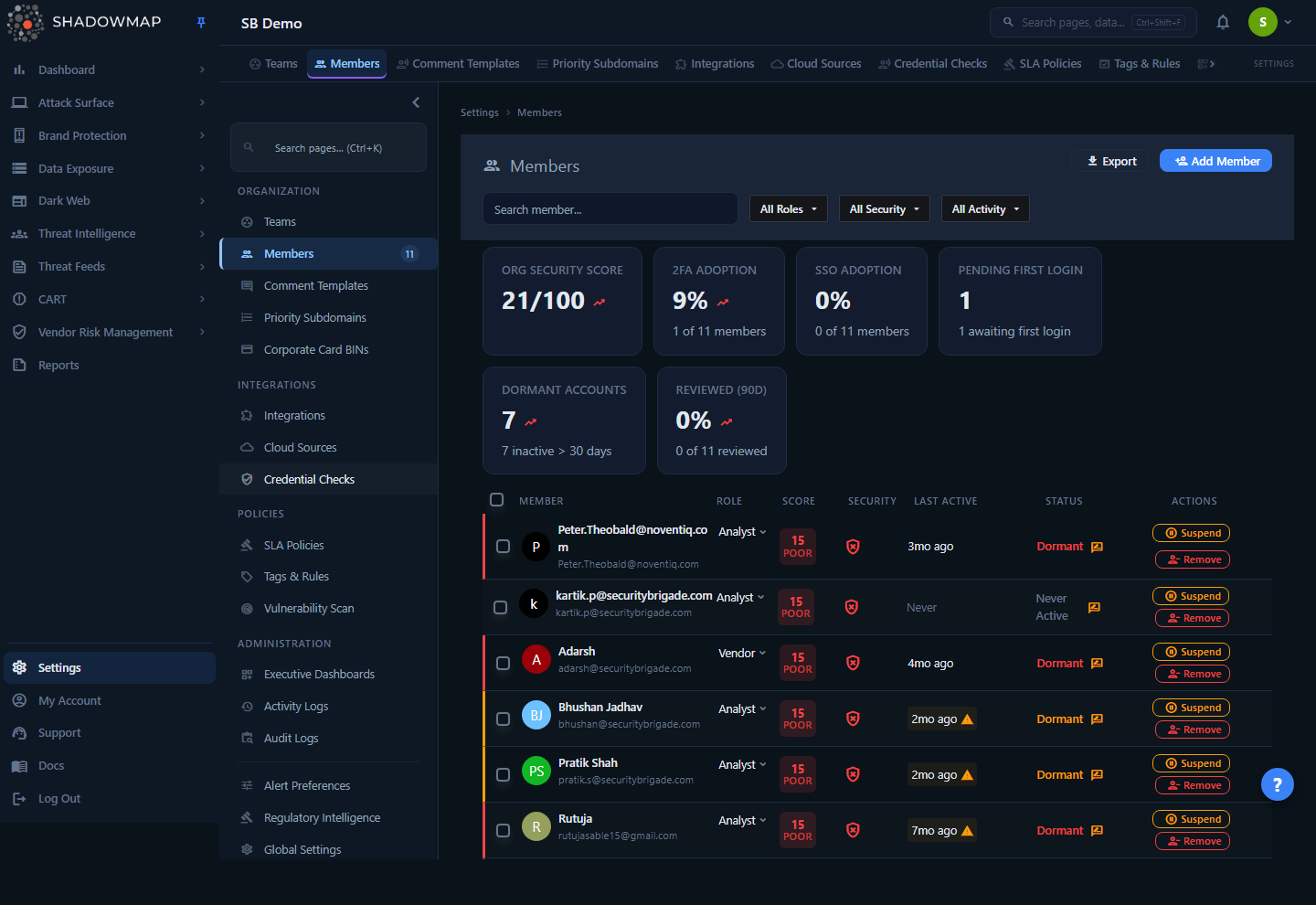 The Settings area landing on Members — the persistent left sidebar groups every configuration page into Organization, Integrations, Policies, and Administration.
Settings is a dedicated workspace with its own persistent left sidebar, separate from the main module navigation. Every configuration page lives under /settings/* and renders inside a shared shell:
- A grouped sidebar (Organization, Integrations, Policies, Administration) that lists only the pages your role and permissions allow you to see.
- A page search box at the top of the sidebar (and a Ctrl+K command palette) for jumping straight to a page or quick action by name.
- Breadcrumbs on detail and form pages so you can navigate back to a parent list.
- A collapsible sidebar that remembers your expanded/collapsed preference across reloads.
Opening Settings does not land on a fixed dashboard. There is no standalone "Settings home" — navigating to /settings redirects you to the first page your account can access, in sidebar order. For an administrator that is typically Teams; if you lack access to Teams it falls through to Members, then the next visible page. The screenshot above shows the common landing view, Members.
How it works
These are the mechanics that aren't obvious from looking at the sidebar.
Settings is permission-gated, top to bottom
Entering the Settings area at all requires the settings.manage permission. Beyond that gate, each sidebar item is filtered independently, so two people in the same org can see different menus:
- Every page has a read permission (for example, Members requires
settings.members:read, SLA Policies requiressettings.sla-policy:read). If you don't hold the permission, the item is hidden from the sidebar entirely — not shown-and-disabled. - A subset of pages are admin-only regardless of granular permissions: Credential Checks, Alert Preferences, Regulatory Intelligence, and Global Settings. These only render for accounts with an administrator-class role.
- Empty groups disappear. If you can't access any page in a section (say, all of Policies), that section header is removed rather than left empty.
Because the menu is built from your effective permissions, the redirect target for /settings is computed per user — the platform picks the first item you're actually allowed to open.
INFO
Direct-URL access to the most sensitive admin pages is also guarded. Global Settings, Alert Preferences, and Credential Checks have a route guard that bounces non-administrators back to the dashboard, so deep-linking to /settings/global-settings won't bypass the role check.
The sidebar groups map to a configuration lifecycle
The four sections are ordered to mirror how an organisation sets ShadowMap up and runs it:
| Section | Purpose | Pages |
|---|---|---|
| Organization | Who is in the tenant and how the org is described | Teams, Members, Comment Templates, Priority Subdomains, Corporate Card BINs |
| Integrations | What external systems feed or receive data | Integrations, Cloud Sources, Credential Checks |
| Policies | How findings are governed and scanned | SLA Policies, Tags & Rules, Vulnerability Scan (Scan Profiles) |
| Administration | Org-wide behaviour, oversight, and forensics | Executive Dashboards, Activity Logs, Audit Logs, Alert Preferences, Regulatory Intelligence, Global Settings |
In the Administration section, a visual divider sits above Alert Preferences, separating the upper group (Executive Dashboards, Activity Logs, Audit Logs) from the configuration pages below it (Alert Preferences, Regulatory Intelligence, Global Settings).
Search and the command palette
Two ways to navigate without scrolling the sidebar:
- The sidebar search box filters the visible items by a case-insensitive label match. Sections with no matching items are hidden while you type.
- Ctrl+K opens a full command palette that fuzzy-searches across every settings page, every account page, and quick actions like "Create SLA Policy", "Create Tag Rule", "Create Scan Profile", and "Invite Member". Use the arrow keys to move, Enter to go, Esc to close. Press ? anywhere in Settings to see the keyboard-shortcut help overlay.
The palette includes pages you may not have permission to open; it is a navigation aid, and the per-page permission guards still apply when you arrive.
Account vs. Settings
The same sidebar shell also powers the Account area (/account/*) — Profile, Security & 2FA, Notifications, Sessions, Saved Searches, and Linked Accounts. Account pages are about you (your own login, devices, and preferences); Settings pages are about the organisation. They are separate areas with separate landing redirects, but share the navigation chrome.
The Settings pages
Each sidebar item opens a full management page. The table below is your map of what each one does and where to read more.
Organization
| Page | What you do here |
|---|---|
| Teams | Group members into teams and route findings/ownership accordingly. See Teams. |
| Members | Invite, suspend, remove, and re-role users; review 2FA/SSO adoption and dormant accounts. See Members. |
| Comment Templates | Save reusable canned responses for analyst comments on findings. See Comment Templates. |
| Priority Subdomains | Flag the subdomains that matter most so they're treated as high-priority assets. See Priority Subdomains. |
| Corporate Card BINs | Register your corporate card BIN ranges so dark-web card-leak detection can match them. See Card BINs. |
Integrations
| Page | What you do here |
|---|---|
| Integrations | Connect outbound tools — ticketing, chat, SIEM, and webhooks — to receive ShadowMap events. See Integrations. |
| Cloud Sources | Connect cloud accounts (e.g. AWS) so ShadowMap can enumerate cloud-hosted assets. See Cloud Sources. |
| Credential Checks (admin) | Configure leaked-credential matching against your domains and identities. See Credential Checks. |
Policies
| Page | What you do here |
|---|---|
| SLA Policies | Define time-to-resolve targets per severity so overdue findings surface as breaches. See SLA Policies. |
| Tags & Rules | Auto-apply tags to findings via rules for routing, filtering, and reporting. See Tag Rules. |
| Vulnerability Scan | Build scan profiles that control how and how deeply assets are scanned. See Scan Profiles. |
Administration
| Page | What you do here |
|---|---|
| Executive Dashboards | Configure the curated, board-ready dashboards exposed to executive stakeholders. See Executive Dashboards. |
| Activity Logs | Review a feed of user and system activity across the tenant. See Activity Logs. |
| Audit Logs | Inspect a forensic, security-relevant record of who changed what and when. See Audit Logs. |
| Alert Preferences (admin) | Set org-wide alerting behaviour and CVE/news alert defaults. See Alert Preferences. |
| Regulatory Intelligence (admin) | Choose which regulator feeds the tenant ingests. |
| Global Settings (admin) | Configure organisation-wide platform behaviour. See Global Settings. |
TIP
The pages marked (admin) are only visible to administrator-class accounts. If you expected to see one and don't, you most likely hold a non-admin role.
The Members landing page
Because Members is the page most users land on when opening Settings, here's what it surfaces. It doubles as an identity-posture dashboard for your organisation, not just a user list.
Summary metrics
A bar of metric cards across the top gives you an at-a-glance read on access hygiene. Most cards are clickable and apply the matching filter to the table below.
| Metric | What it tells you |
|---|---|
| Org Security Score | An aggregate 0–100 score for the organisation's account-security posture. Flagged when below 50. |
| 2FA Adoption | Percentage and count of members with two-factor authentication enabled. Flagged below 80%. Click to filter to members without 2FA. |
| SSO Adoption | Percentage and count of members logging in via single sign-on. Click to filter to members not using SSO. |
| Pending First Login | Members who were invited but have never completed a first login. Click to filter. |
| Dormant Accounts | Members inactive for more than 30 days. Flagged when above zero. Click to filter. |
| Reviewed (90d) | Percentage of members whose access has been reviewed in the last 90 days. Flagged below 100%. Click to filter to the unreviewed. |
The member table
| Column | Contents |
|---|---|
| Member | Name (or email if unnamed) plus email and an avatar initial. Click the name to expand an inline preview; double-click to open the full member profile. |
| Role | The member's role — editable inline (for users you can manage) via a dropdown. |
| Score | A per-member account-security score with a colour-coded band and label: green Good (80+), amber Fair (50–79), red Poor (below 50). |
| Security | A 2FA indicator — a green shield if enabled, a red badge if not. |
| Last Active | Relative time of last login, with a warning icon if the last login came from a new location/device. "Never" if they've never logged in. |
| Status | Lifecycle state: Active, Pending, Never Active, Dormant (warning/critical), or Suspended. An access-review icon appears when a review is overdue. |
| Actions | Contextual per-row buttons (see below). |
Rows are colour-coded on the left edge: amber/red for dormant accounts, red and dimmed for suspended accounts, and an accent border for administrators.
Roles
ShadowMap uses four assignable roles. The dropdown only offers roles you're permitted to assign, plus the member's current role.
| Role | Typical use |
|---|---|
| Administrator | Full control of the tenant, including admin-only settings pages. |
| Analyst | Day-to-day triage and investigation across modules. |
| SOC User | Operational access for monitoring and response. |
| Vendor | Scoped, limited access for third parties in vendor-risk workflows. |
For the full permission catalogue behind these roles, see Roles & Permissions and the RBAC permissions reference.
Filtering and search
The Members page offers a search box plus three dropdown filters, surfaced as removable chips when active:
- Role — Administrator, Analyst, SOC User, Vendor, or all.
- Security — 2FA enabled / disabled, uses SSO / no SSO.
- Activity — Active, Dormant 30d+, Dormant 90d+, Pending First Login, Never Active, or Unreviewed (90d+).
Search runs server-side when you type a query (debounced) and clears back to the full list when emptied.
Taking action on members
Available actions depend on your permissions and the target member's state:
- Add Member opens the invite flow (requires invite permission).
- Export downloads the member list as a background export (administrators).
- Resend re-sends credentials to a member who hasn't set a password.
- Suspend / Reactivate blocks or restores login. Suspending immediately terminates the member's active sessions.
- Remove deletes the member; if they own assets you'll be prompted to reassign first.
- Leave appears on your own row to leave the organisation.
- Bulk actions — select multiple rows to Suspend them or Send 2FA Reminder in one operation.
Inline preview
Clicking a member's name expands an inline panel showing their security posture plus metadata — created-by, last login IP, location, and active session count — with a button to open the full member profile.
Common questions
I'm in Settings but I can't see a page I expected (e.g. Global Settings or SLA Policies). The sidebar only shows pages your role and permissions grant. Global Settings, Alert Preferences, Regulatory Intelligence, and Credential Checks are administrator-only. Other pages each need their specific read permission. Ask an administrator to adjust your role or permissions.
Where does /settings take me? There's no Settings home page. There is no fixed landing dashboard. /settings redirects to the first page you have access to, in sidebar order — usually Teams for admins, otherwise Members or the next visible page.
Why can two people in my org see different Settings menus? The menu is built per user from effective permissions. Items you can't access are hidden entirely, and sections with no accessible items are removed.
What's the difference between Settings and Account? Settings configures the organisation (members, integrations, policies, admin controls). Account configures you — your own profile, 2FA, sessions, notifications, and saved searches. They share the same sidebar shell but are separate areas.
Is there a faster way to navigate than scrolling the sidebar? Yes — type in the sidebar search box to filter, or press Ctrl+K for the command palette, which fuzzy-searches all pages plus quick actions like "Create SLA Policy" and "Invite Member". Press ? for the keyboard-shortcut overlay.
What's the difference between Activity Logs and Audit Logs? Activity Logs is a broad feed of user and system activity. Audit Logs is the security-relevant, forensic record of configuration and access changes — who changed what, when. Use Audit Logs for compliance and incident review.
Related
- Members — manage users, roles, and account-security posture (the default Settings landing page).
- Teams — organise members into teams.
- Roles & Permissions — what each role can do across the platform.
- RBAC Permissions reference — the full permission catalogue that gates Settings pages.
- SLA Policies and SLA Violations — define time-to-resolve targets and track breaches.
- Tag Rules and Tag Rules feature guide — auto-tag findings for routing and reporting.
- Integrations and Sharing & Integrations — connect outbound tools and webhooks.
- Audit Logs / Activity Logs — oversight and forensic history of changes.
- Global Settings — organisation-wide platform configuration (admin only).