
Asset Inventory
Asset Inventory is ShadowMap's source of truth for what you own on the internet. It enumerates every root domain, subdomain, public IP, and internal host attributed to your organization, and it is the root of the discovery tree that every other module hangs off. An asset that is missing from this inventory is an asset nobody is defending.
Overview
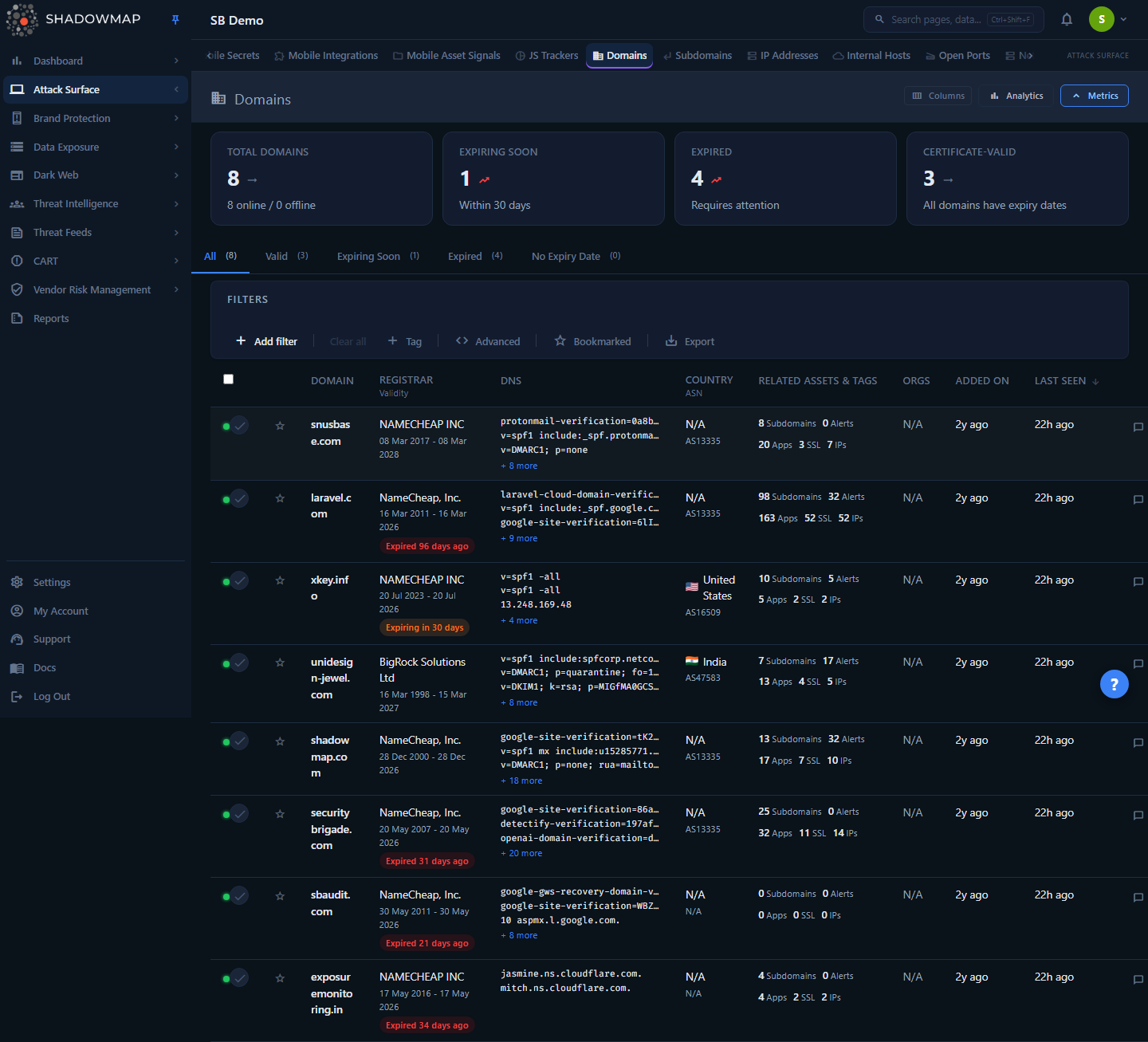
Asset Inventory is a container with four sub-views, reached from the tabs/sidebar under Asset Inventory. Opening the module lands you on Domains (the route /asset-inventory redirects to /asset-inventory/domains).
| Sub-view | What it tracks | Documentation |
|---|---|---|
| Domains | Root/registrable domains (e.g. example.com) — the anchor for everything below | Domains |
| Subdomains | Hostnames discovered under your domains (e.g. api.example.com) | Subdomains |
| IP Addresses | Public IPs your assets resolve to, with reverse DNS, ASN, and open-port counts | IP Addresses |
| Internal Hosts | Internal/non-public hostnames surfaced from breach data, certificates, and crawls | Internal Hosts |
Each sub-view shares the same layout: a metrics strip, an analytics panel, validity/status tabs, a filter bar, a sortable table, bulk actions, and a side-drawer detail. This page documents the hub as a whole and the Domains landing view in depth, because Domains is the asset class everything else cascades from.
How it works
The mechanics below are not visible in the UI but determine what you see and why counts move.
Discovery cascade
Asset Inventory is populated by ShadowMap's discovery pipeline, which starts from your seed domains (the domains you, or your onboarding team, confirmed you own) and works outward:
- Domains → ShadowMap enumerates subdomains via passive DNS, certificate transparency (CT) logs, and brute-force resolution.
- Subdomains → resolved to IP addresses.
- IP addresses → scanned for open ports and network services.
- Web applications on those hosts → fingerprinted for technology stacks, which are matched against CVE data.
Because everything descends from the domain list, adding or removing a domain cascades through the whole pipeline. Decommission a domain and its subdomains, IPs, apps, and findings eventually age out; add one and a fresh tree of assets appears on the next scan cycle.
Attribution and confidence
Not every host that mentions your brand is yours. ShadowMap attributes an asset to you using multiple independent signals and exposes them per-domain as Confidence Attribution (visible in the domain detail drawer):
- Domain Owned — WHOIS/registration ties the domain to your organization.
- IP Owned — the resolving IP falls within an IP range or ASN attributed to you.
- SSL Cert Linked — a TLS certificate links the asset back to a confirmed identity.
Each row also carries a Relevance score that ranks how strongly an asset is attributed to you. Use Relevance to triage: high-relevance assets are almost certainly yours and warrant action; lower-relevance assets are candidates for review or exclusion.
Online / Offline status
The colored dot on each row reflects the most recent scan, not a real-time probe:
- Online (green) — the asset responded on the last scan.
- Offline (red) — the asset did not respond.
An asset flipping Offline does not mean it is gone — it may be temporarily down, firewalled, or moved. Offline assets remain in the inventory (and keep their history) until they age out, because a "dark" asset that comes back online is still part of your attack surface.
Last Seen vs. First Seen
- Last Seen is the date of the most recent successful scan that observed the asset. Stale Last Seen dates are how you spot assets that have dropped off.
- First Seen (on Subdomains/Internal Hosts) is when ShadowMap first discovered the asset — useful for spotting new exposure.
Domain validity states
ShadowMap derives a registration-health state for every domain from WHOIS expiry data, and the Domains view tabs and metric cards are built on it:
| State | Meaning |
|---|---|
| Valid | Registration has a live expiry date that is comfortably in the future. The "Certificate-Valid" metric card counts domains with a live expiry date. |
| Expiring Soon | Expiry is within the next 30 days — the row shows an amber "Expiring in N days" badge. |
| Expired | The expiry date has passed — the row shows a red "Expired N days ago" badge. |
| No Expiry Date | WHOIS returned no expiry (common with some ccTLDs and privacy-protected registrations). These do not roll up into "Certificate-Valid"; they have their own tab and count. |
Expiry is an attack surface, not an admin chore
An attacker who registers your lapsed domain inherits everything pointed at it — email (MX), web traffic, API callbacks, OAuth redirects, and any trust your brand carries. Treat Expiring Soon and Expired domains as findings, not housekeeping.
Understanding the Domains table
The Domains view is the default landing view. Each row is one root domain. Columns can be shown/hidden with the column customizer; Domain is locked on.
| Column | What it shows |
|---|---|
| Status dot | Online / Offline from the last scan (leftmost, next to the checkbox). |
| Domain | The root domain name. Sortable. |
| Registrar / Validity | Registrar (e.g. GoDaddy, Cloudflare), the registered–expiry date range, and a validity badge when the domain is expiring or expired. |
| DNS | A condensed list of current DNS records (A, AAAA, MX, NS, TXT, CNAME); SOA is omitted and the row truncates to the first few records with a "+N more". |
| Country / ASN | Country (with flag) and the autonomous system number (AS####) of the domain's primary IP. |
| Related Assets & Tags | Clickable counts of related Subdomains, Alerts, Apps, SSL, IPs, plus any custom tags applied to the domain. |
| Orgs | Business units / legal entities associated with the domain (truncated with a +N overflow). |
| Relevance | Attribution-confidence score (see Attribution and confidence). |
| Last Seen | Relative time of the most recent successful scan. Sortable. |
The Related Assets & Tags counts are live cross-links: clicking a non-zero count (e.g. "12 Subdomains") navigates you to that asset class filtered to this domain, so you can pivot from a domain straight into its subdomains, alerts, applications, SSL certificates, or IPs.
Metrics strip
Above the table, four cards summarize domain posture. Each card is clickable: Total Domains clears the filters back to the full list, while Expiring Soon, Expired, and Certificate-Valid apply the matching validity filter and switch to the corresponding tab:
| Card | Counts |
|---|---|
| Total Domains | All monitored domains, with an online / offline subtitle. |
| Expiring Soon | Domains expiring within 30 days. |
| Expired | Domains whose registration has lapsed. |
| Certificate-Valid | Domains with a live expiry date; the subtitle surfaces how many have no expiry date so the count reconciles with the "No Expiry Date" tab. |
Filtering & search
The filter bar supports compound queries; rules combine with AND by default, and the applied filter state is preserved when you export. Available filter fields on Domains:
| Filter | Notes |
|---|---|
| Domain | Full or partial domain-name match. |
| Status | Online / Offline. |
| Domain Validity | Valid, Expiring Soon, Expired, No Expiry Date (same states as the tabs). |
| Country | Hosting/registration country. |
| ASN | Autonomous system number. |
| Registrar | Filter by registrar. |
| Organization | Business unit / entity. |
| DNS | Match on DNS record content. |
| Bookmarked | Restrict to domains you've starred (also available as the Bookmarked toggle in the filter bar). |
| Added On | Date the domain entered the inventory. |
| Last Seen | Date of last successful scan. |
The tabs (All / Valid / Expiring Soon / Expired / No Expiry Date) are pre-built validity filters; selecting one applies the corresponding Domain Validity rule. The Bookmarked star toggle and the metric cards apply filters too — they all write to the same filter state, so combining a tab with the filter bar narrows further rather than replacing.
Find renewal risk fast
Click the Expiring Soon or Expired metric card (or tab), then export. You get a spreadsheet of exactly the domains that need renewal action, scoped to any other filters you've layered on.
Detail view
Click any domain to open a side drawer (or use Open full page for the standalone detail route). The drawer is built for fast inspection without leaving the list and shows:
- Registration facts — registrar, registered date, expiry date, last seen, country, ASN, and an expiry badge in the header when relevant.
- Organizations — the entities the domain is attributed to.
- Related Assets — count cards for Subdomains, Alerts, Apps, SSL, and IPs.
- DNS Records — record types present (A, AAAA, MX, NS, TXT, CNAME…) with per-type counts;
SOAis excluded. - Confidence Attribution — the Domain Owned / IP Owned / SSL Cert Linked signals described above, each shown as a check or cross.
- Tags — any custom tags applied to the domain.
Use J / K to move to the next/previous domain while the drawer is open, S to bookmark, Space to select, and Escape to close.
Taking action
From the Domains list you can:
- Bookmark a domain (the star on the row, the
Sshortcut, or bulk-bookmark from the selection bar) to build a watchlist. - Apply custom tags — inline on the row or in bulk — to add business context ShadowMap can't infer (business unit, acquisition, compliance scope). Tags are filterable and appear in exports.
- Select rows (checkboxes) to reveal the bulk action bar, then bookmark or share the selection. Select all operates on the current page of results.
- Share a domain or selection to an integrated destination (e.g. ticketing/collaboration) via the share modal.
- Export — click Export to run an asynchronous export of the current, filtered view; it includes the visible columns plus DNS records, name servers, custom tags, and organizations, and runs as a background task you're notified about when ready.
- Comment on a domain from the row's comment control, using saved comment templates where configured.
Common questions
Where does the asset list come from? Can I add assets manually? The inventory is built by automated discovery seeded from the domains confirmed during onboarding, then expanded via passive DNS, CT logs, resolution, and scanning. New seed domains are added through onboarding/configuration rather than typed directly into this table. If you believe an asset is missing, that's a missing-assets scenario.
A domain shows Offline — is it gone? Not necessarily. Offline reflects the last scan only; the asset may be temporarily down, firewalled, or moved. It stays in the inventory with its history until it ages out, because a host that returns online is still part of your attack surface.
Why is a domain or subdomain here that I don't think we own? Attribution is signal-based and occasionally over-includes. Check the Relevance score and the Confidence Attribution panel in the detail drawer — low confidence across Domain Owned / IP Owned / SSL Cert Linked is a candidate for review. Genuinely unrelated assets should be raised with support for exclusion.
The "Expiring Soon" card says 30 days but I've seen 100 days elsewhere — which is it? The live module flags Expiring Soon at 30 days (the row badge and metric card use a 30-day window). Treat 30 days as the threshold the product applies today.
Does export respect my filters? Yes. Export runs against your current filter and sort state and produces a spreadsheet (XLSX) in the background; it adds DNS records, name servers, tags, and organizations beyond what the table columns show.
How is this different from CMDB Reconciliation? Asset Inventory is everything ShadowMap discovered from the outside. CMDB Reconciliation compares that external truth against your internal CMDB to surface shadow IT (live but not in CMDB) and stale records (in CMDB but not live).
Related
- Domains — the in-depth Domains reference (the default landing view of this hub).
- Subdomains — hostnames discovered under your domains, with Online/Offline tabs and per-subdomain app/port/alert counts.
- IP Addresses — public IPs with reverse DNS, ASN/provider, open-port counts, and CMDB status.
- Internal Hosts — internal/non-public hostnames surfaced from external signals.
- Web Applications — apps discovered on these assets.
- SSL Certificates — certificates issued to your domains and hosts.
- Open Ports and Alerts — the findings that hang off these assets.
- CMDB Reconciliation — reconcile this external inventory against your internal CMDB.
- WHOIS Lookup — the registration data behind the validity states.